
Submit your revisions
Once the client has responded to the Findings raised by the verifier, they can submit their revisions. This notifies the verifier that the next review round is ready and returns the engagement to active review.
Prerequisites
- The registered model status is Revision Requested.
- The client has replied to the Findings they want to address. A reply to every Finding is not required before submitting, but any Finding without a reply will be flagged in the summary modal.
- The user has the Admin or Editor role.
How to submit revisions
- Go to the Register page.
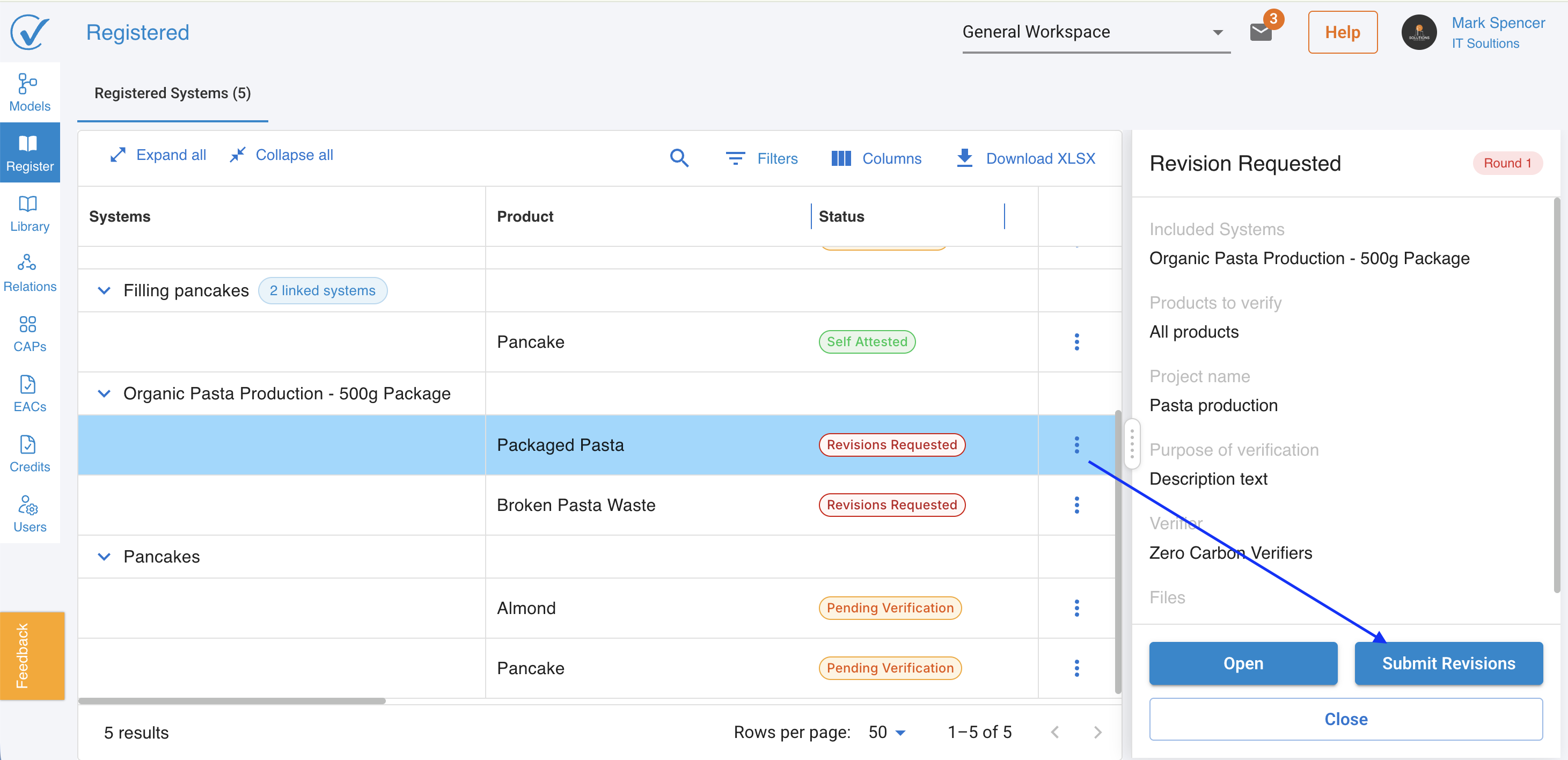
- Click on the model with Revision Requested status to open the right sidebar.
- Click Submit revisions.
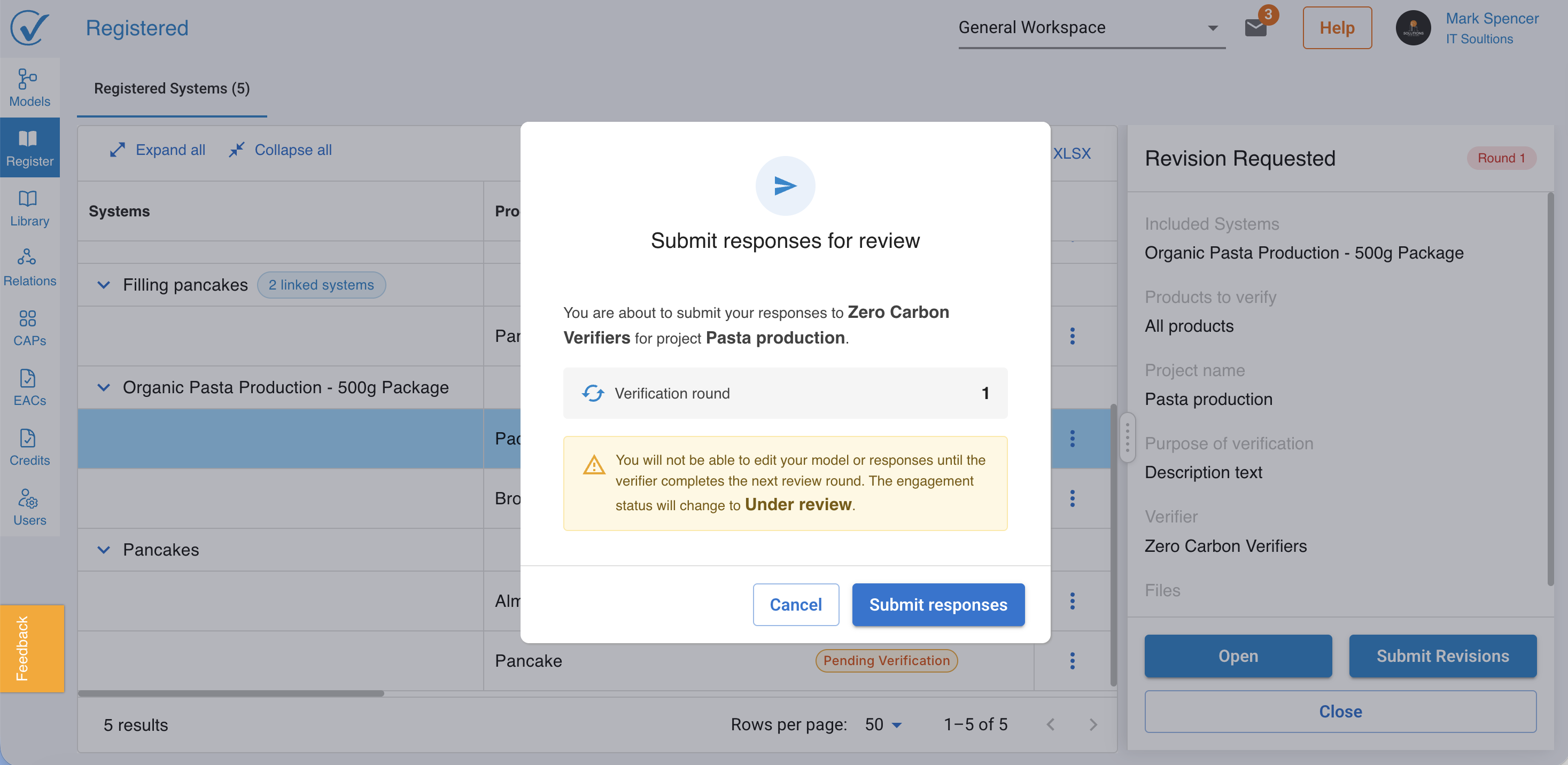
- A summary modal appears showing the number of Findings replied to versus the total raised. This should be reviewed before confirming.
- Click Submit revisions to confirm.
What happens next
Once confirmed:
- The model status transitions to Under Verification.
- The model is locked on the client side. No further changes can be made until the verifier completes their next round or reaches a final outcome.
- The verifier receives an email notification that the revisions have been submitted and the next round is ready.
After submission
The verifier begins their next round of review. If they are satisfied with the responses, they will issue a verification certificate and the model status will move to Verified on CarbonSig. If further corrections are needed, they may send another revision request for Round 2.
Related articles
- Respond to a revision request
- Send a revision request
- The Registered flow
- Request third-party verification
Last updated: 6/17/26, 12:33 PM