
The Registered flow
Why the Registered flow exists
Before this flow was introduced, a model could still be edited after it had been submitted for verification or used to generate a Carbon Receipt. This meant the data a verifier reviewed might not match the data in the final certificate.
The Registered flow solves this by creating a frozen snapshot at the moment of registration. The original model remains editable for future work, while the registered copy becomes the immutable record.
Prerequisites for registering a model
A model can only be registered when both conditions are met:
- The model has Ready status (all required fields and connections are complete).
- All Properties fields are filled in, including any fields not required for Ready status.
How to register a model
- Go to the Models page.
- Locate the model to register.
- Click the three-dot menu on that model.
- Select Register.
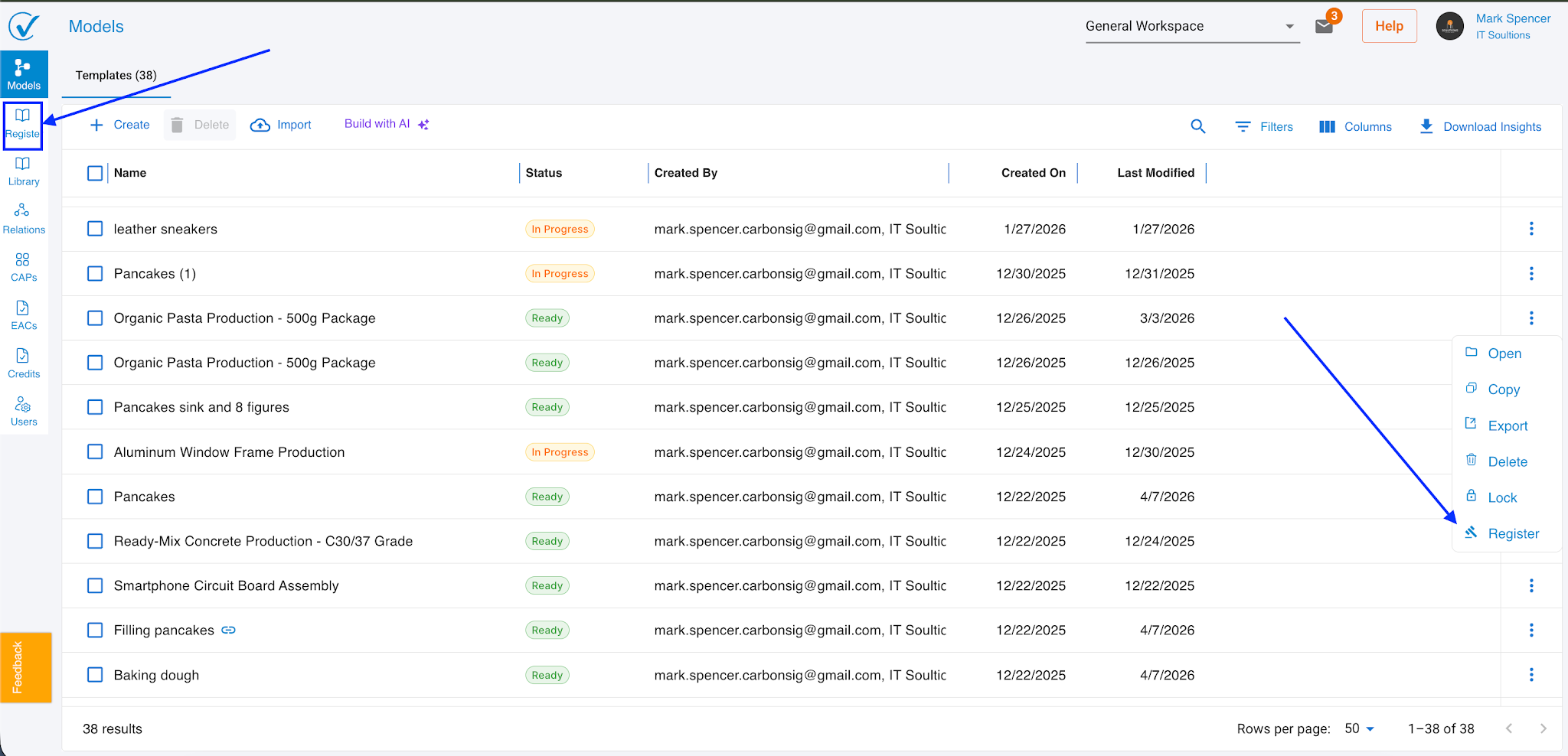
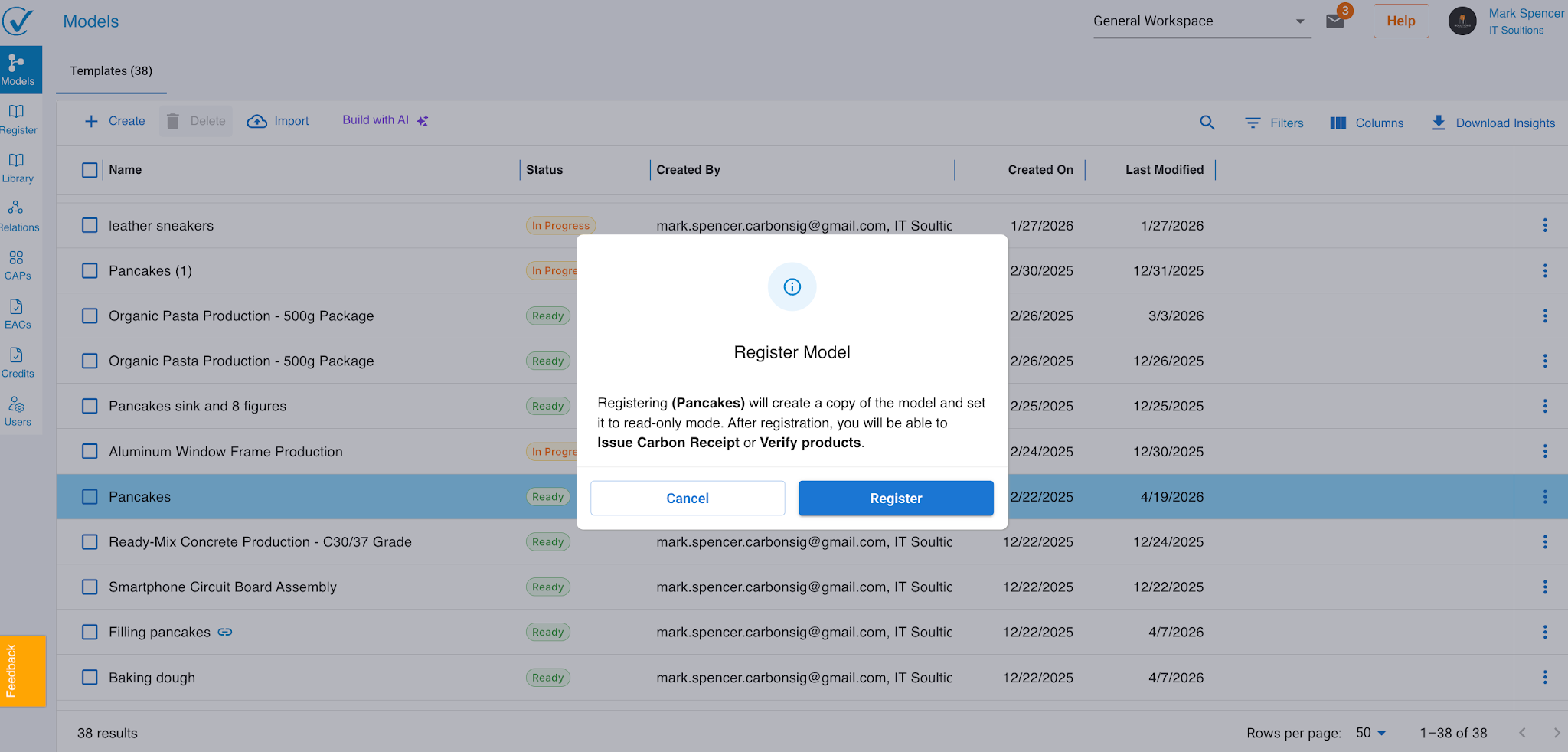
A confirmation modal appears. Its content depends on whether the model has linked subsystems.
Model with no subsystems: The modal confirms that the model will be copied and locked, and lists the next available steps (Carbon Receipt issuance and verification).
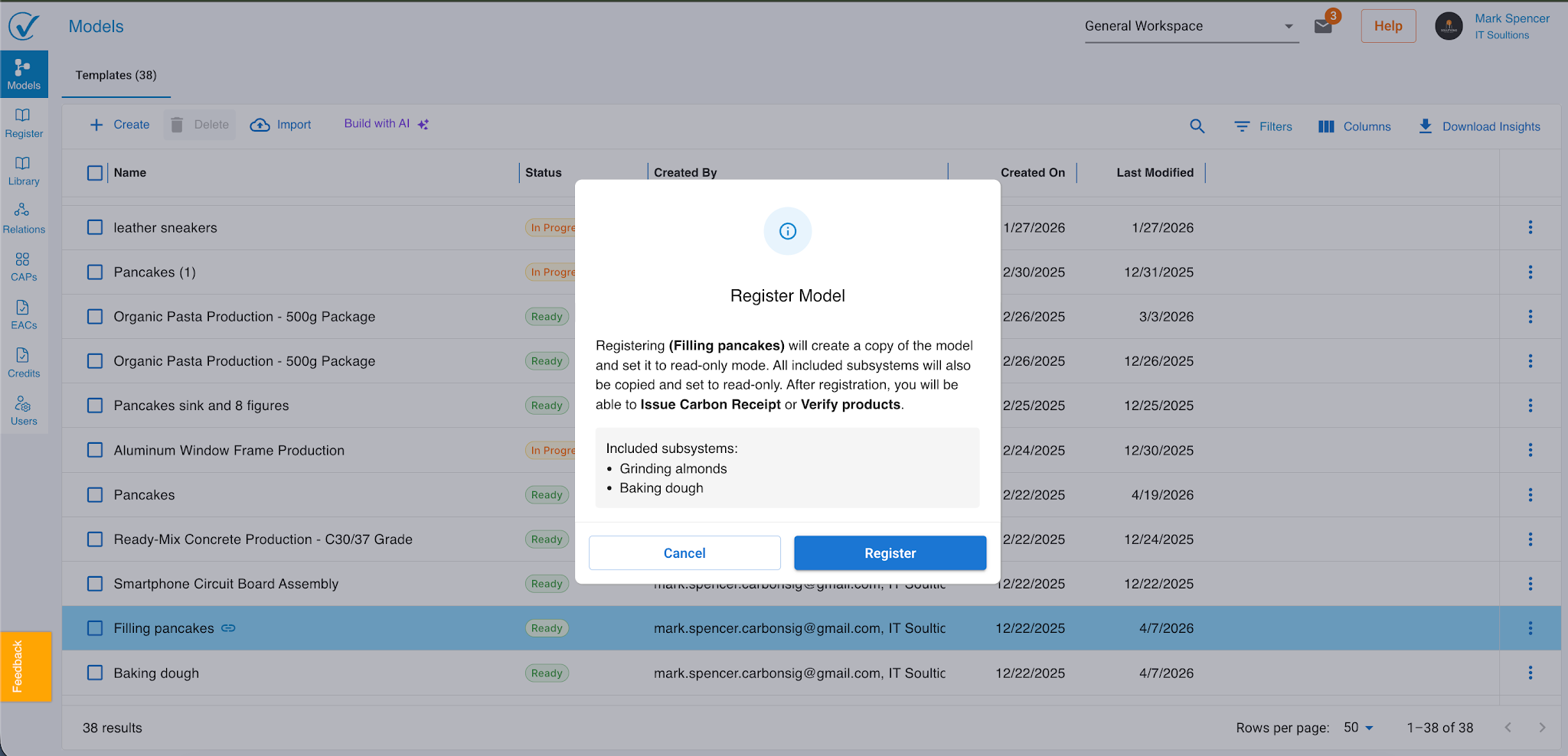
Model with subsystems: The modal lists all linked models. All of them are copied, locked together, and assigned new IDs in a single operation.
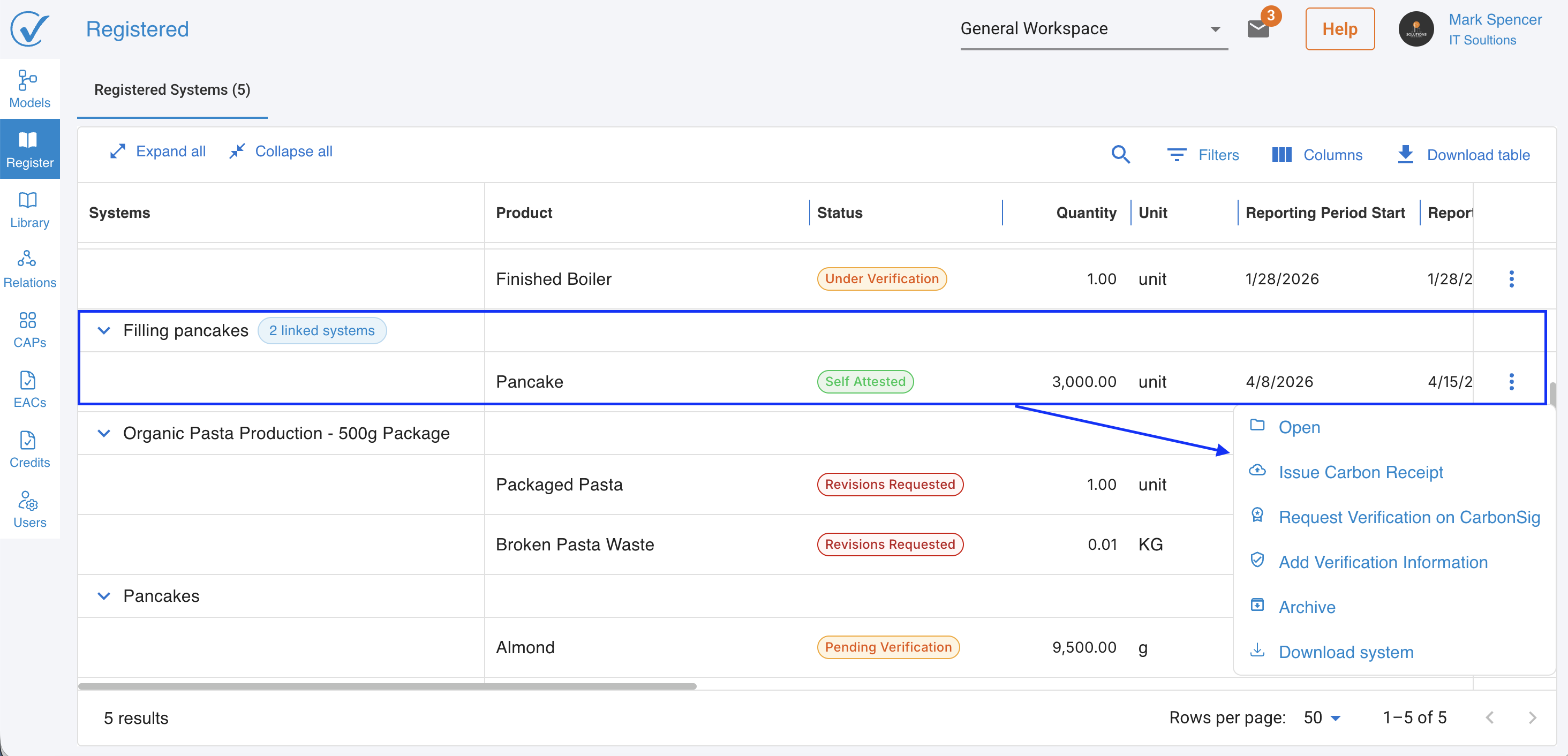
After confirmation, the registered version appears in the Registered tab.
What happens when a model is registered
- A copy of the model is created with new IDs.
- The original model is unchanged and remains editable.
- The registered copy is read-only and locked.
- Comments from the original model are not carried over.
- The registered model cannot be unlocked, except when its status becomes Revisions Requested.
The Registered tab
The Registered tab is the central hub for all post-registration activity. From here, users can:
- Issue Carbon Receipts (CAPs)
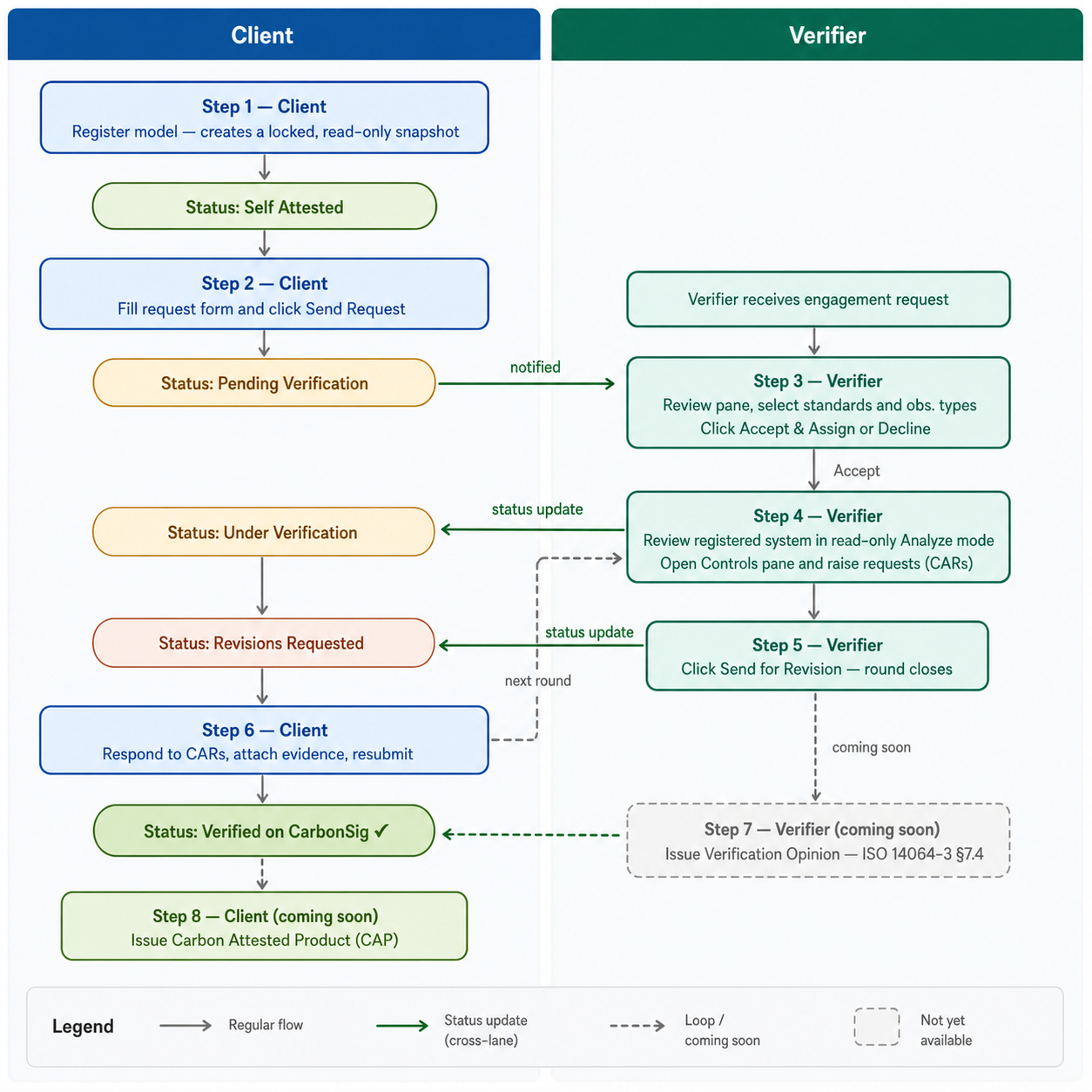
- Initiate and manage verification
- Track status across all registered models
- Download a registered system as an XLSX file for offline reporting or record keeping.
Status lifecycle
Each registered model follows a defined status lifecycle. Available actions depend on the current status.
| Status | Available actions |
|---|---|
| Self attested (default) | Open, Issue Carbon Receipt, Request verification, Add verification info, Archive, Download system |
| Pending verification | Open, Download system |
| Under verification | Open, Download system |
| Revisions requested | Open |
| Verified | Open, Issue Carbon Receipt, Request verification |
| Verified on CarbonSig | Open, Issue Carbon Receipt, Download system |
Carbon Receipts can be issued at any point in the lifecycle, regardless of verification status.
Verification
Requesting verification
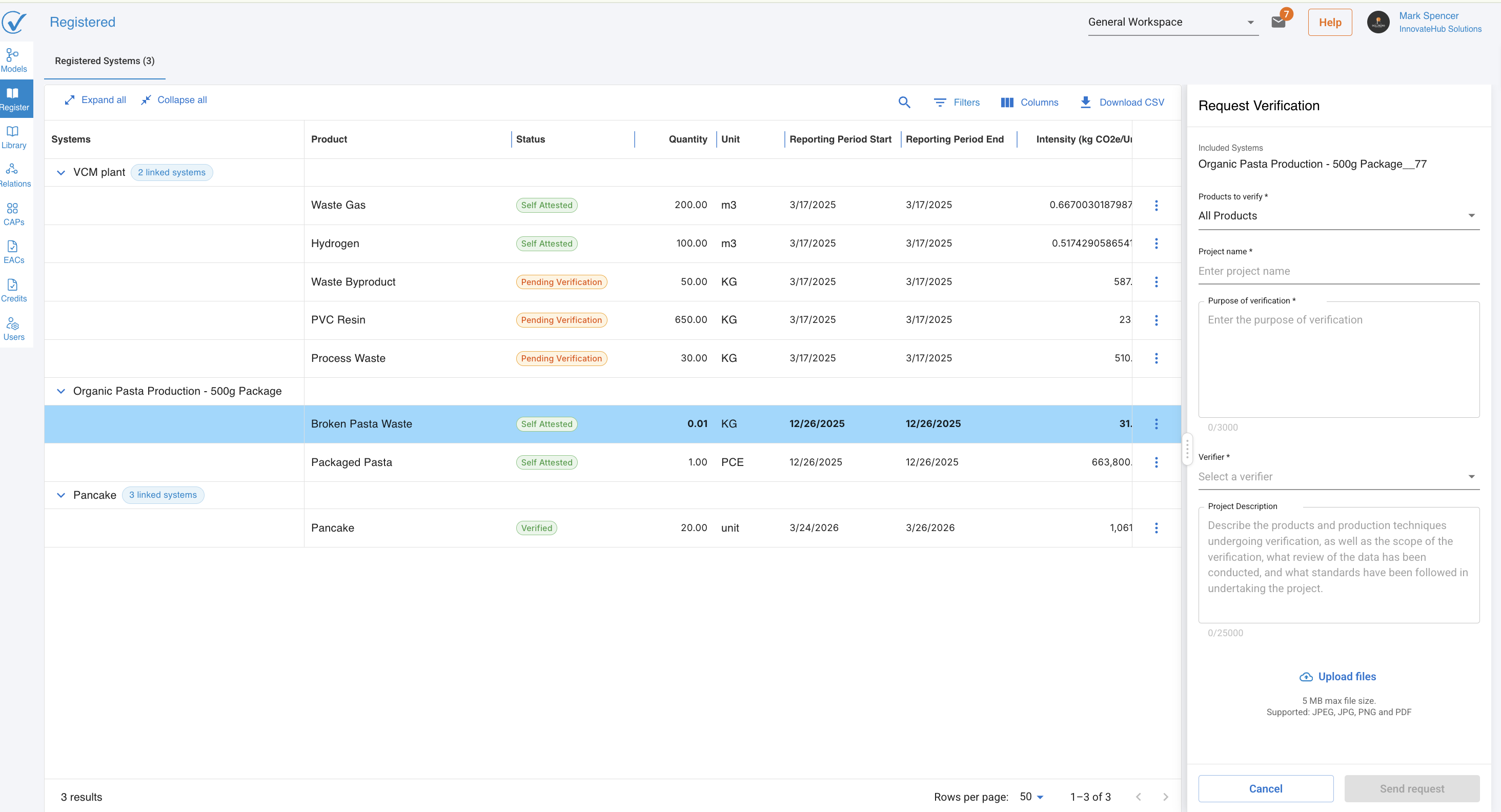
Selecting Request verification from the three-dot menu opens a right sidebar where the verification process can be initiated.
Adding verification information
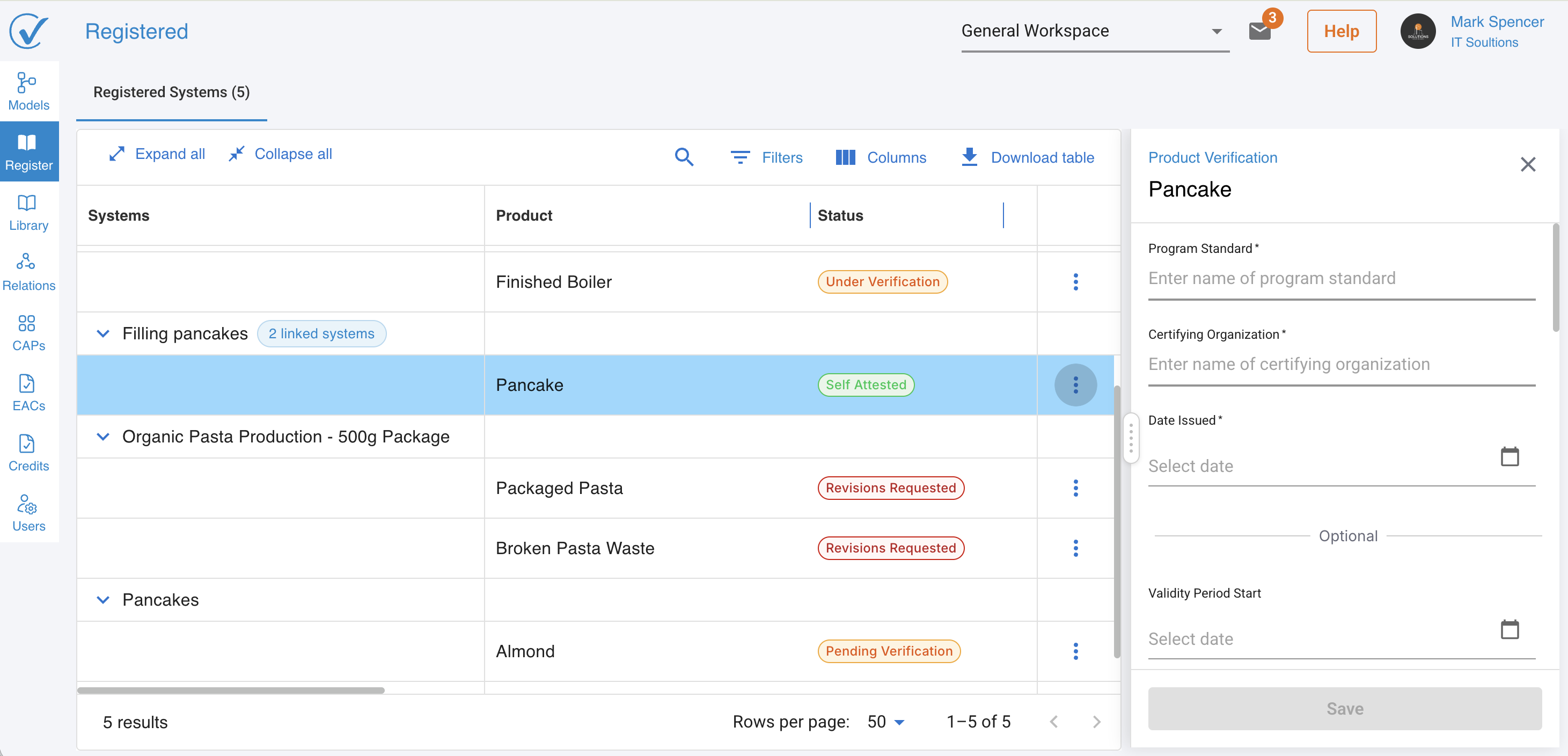
Selecting Add verification info opens the same right sidebar. This replaces the Verification tab that was previously located on the Output node (now deprecated).
Once verification information is added, the status automatically updates to Verified.
Revisions requested
If a verifier requests changes, the status moves to Revisions Requested. This is the only state in which a registered model can be unlocked. After revisions are made in the original editable model, a new registration is required.
Issuing a Carbon Receipt
A Carbon Receipt (CAP) can be issued from any registered model regardless of its verification status. Select Issue Carbon Receipt from the three-dot menu on any registered model in the Registered tab.
Last updated: August 2026