
Send a revision request
When a verifier has completed a review round and identified issues that require correction, they can send a formal revision request to the client directly from the engagement page. This puts the engagement into a waiting state until the client responds.
Prerequisites
- The engagement status is Under Review.
- The verifier has raised at least one Finding against a requirement.
How to send a revision request
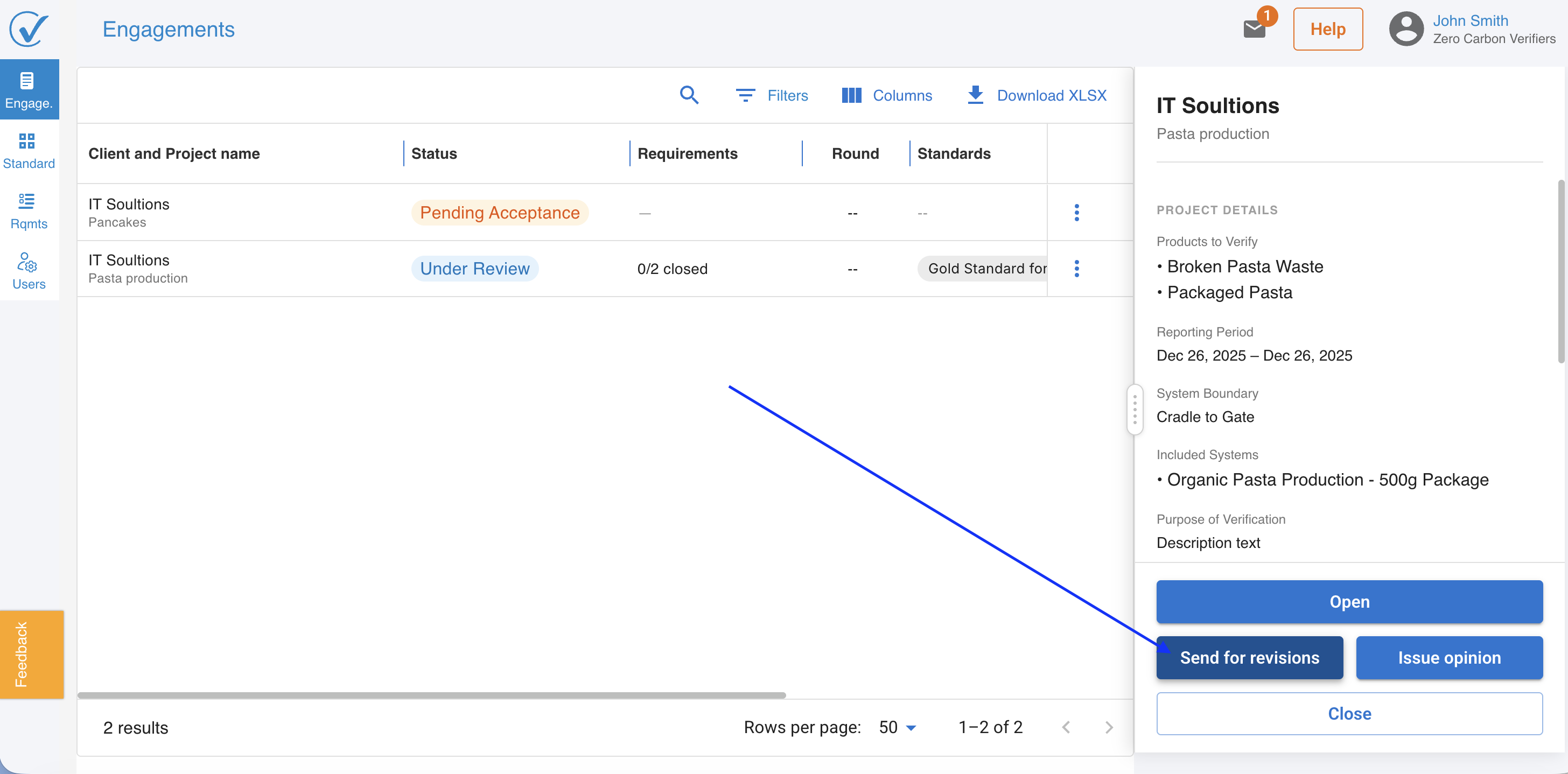
- Open the engagement from the Engagements page.
- Click Send revision request.
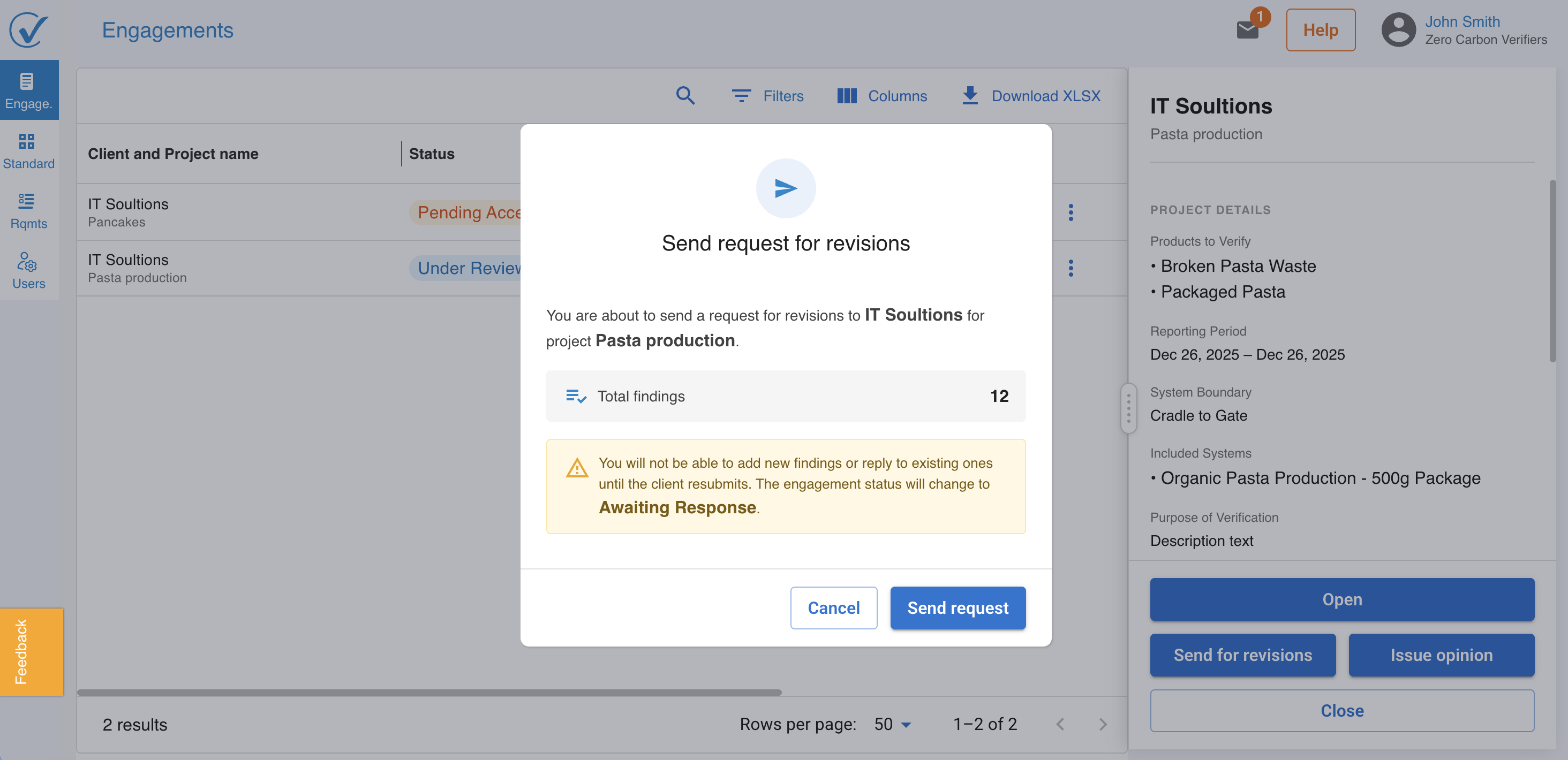
- A confirmation modal appears showing the total number of Findings raised in this round. The verifier should review the count before confirming.
- Click Confirm to submit the request.
What happens next
Once confirmed:
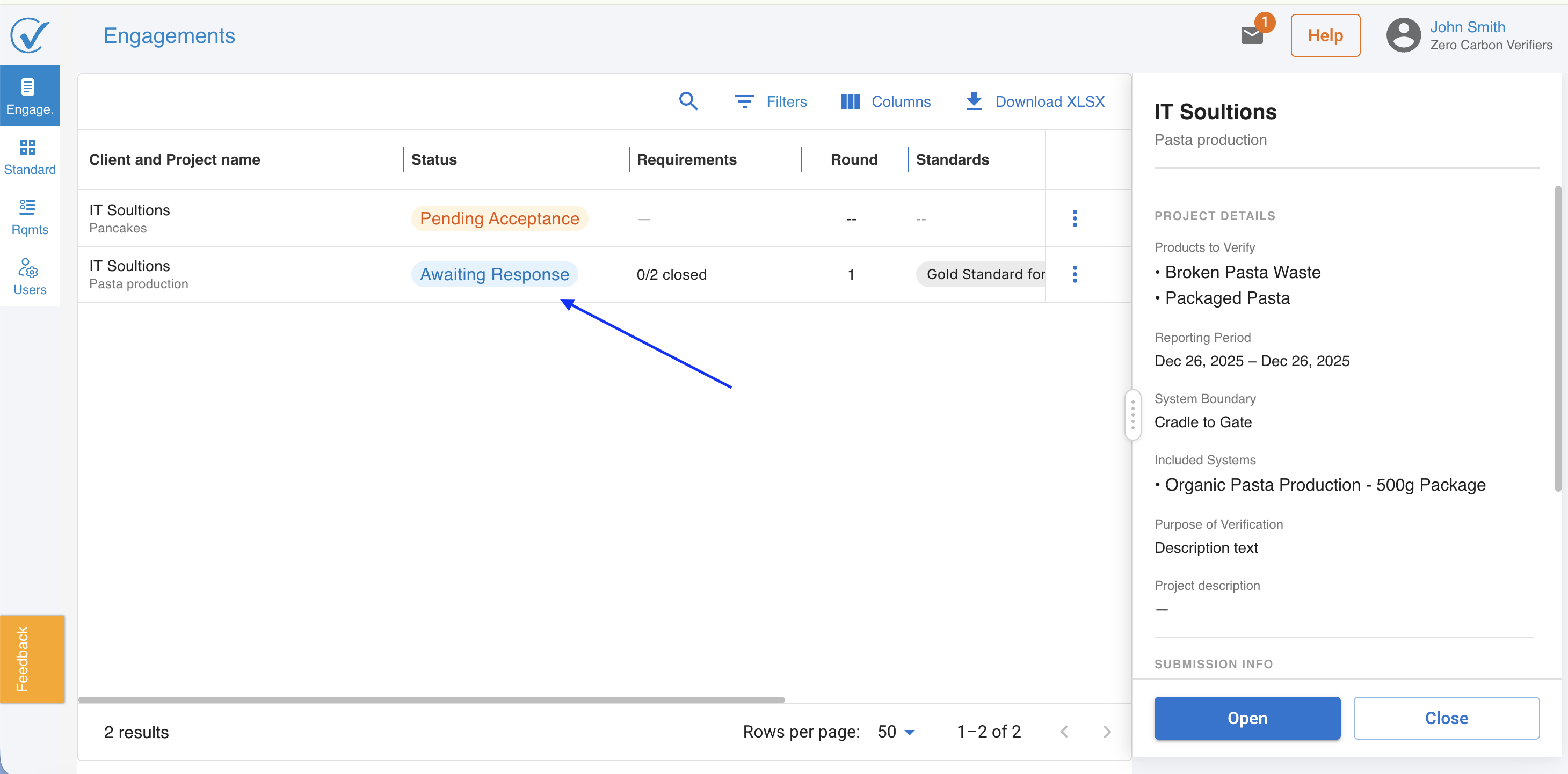
- The engagement status changes to Awaiting Response.
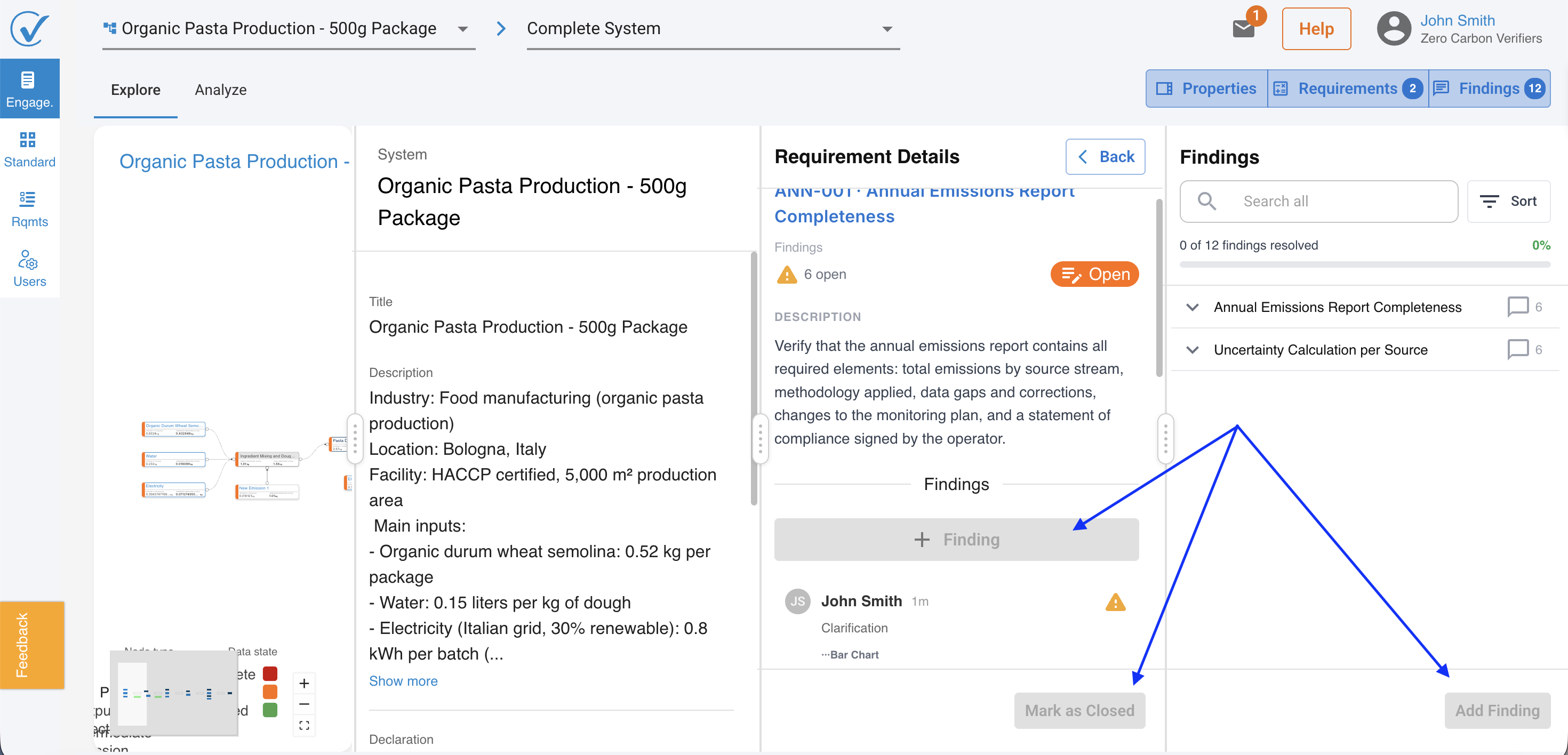
- The verifier enters read-only mode on the engagement. The Add Finding buttons are disabled and the verifier cannot reply to existing comment threads. Only Open and Close actions remain available.
- The client receives an email notification and their model status changes to Revision Requested.
- The verifier receives a notification email when the client submits their revisions and the next round is ready for review.
What the verifier cannot do while awaiting a response
While the engagement is in Awaiting Response status, the verifier cannot:
- Add new Findings.
- Reply to comments in existing Finding threads.
- Change the engagement status manually.
These actions become available again once the client submits their revisions and the engagement returns to Under Review.
Related articles
Last updated: 7/6/26, 10:22 AM