
Managing your CAP inventory
Click CAPs in the left navigation menu to open your Inventory page.
What you see:
- Attestation: Active CAPs available for use
- Transfers: CAPs transferred to other accounts
- Archived: CAPs archived for historical records
The number in parentheses shows how many CAPs are in each category.
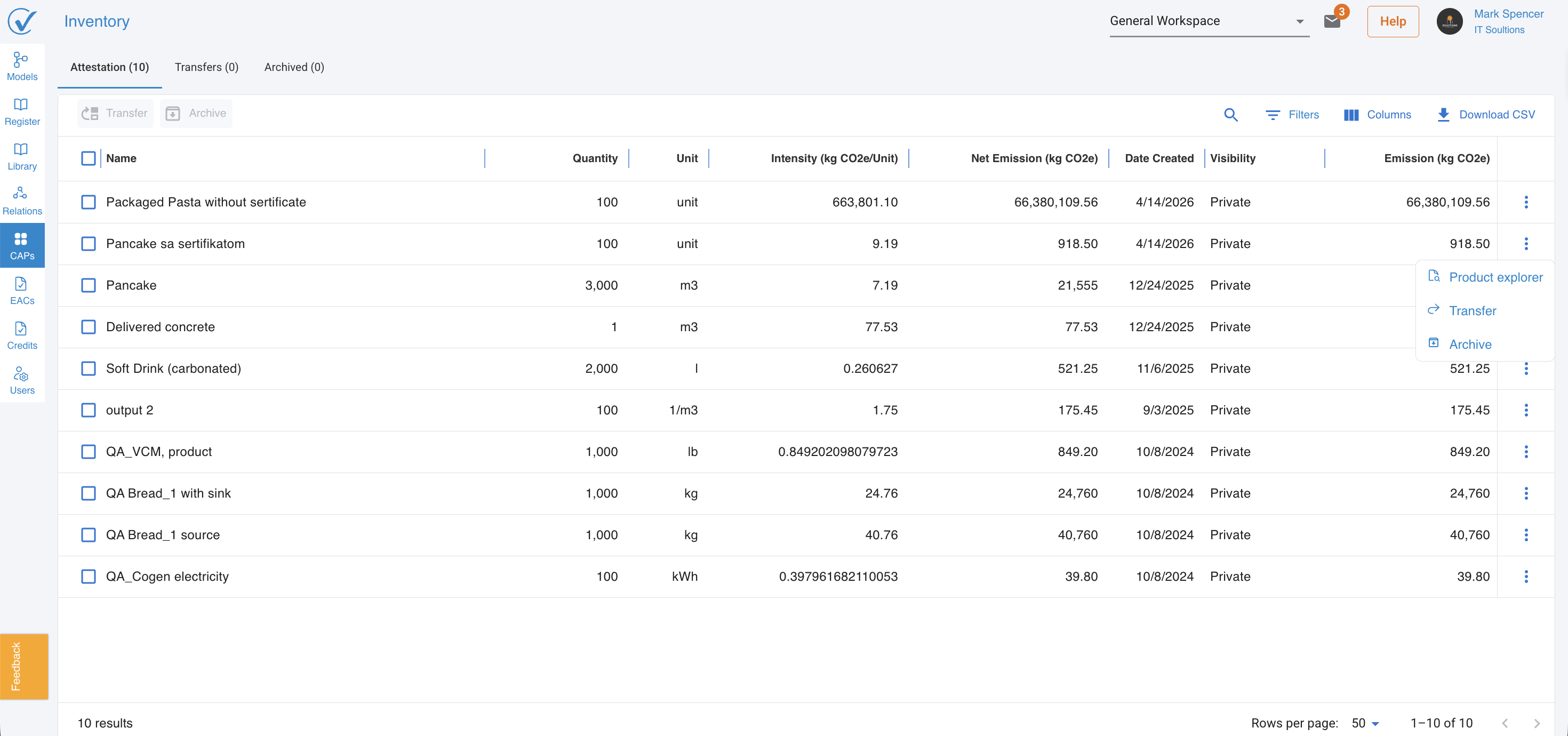
Understanding the Attestation Tab
Your active CAPs display in a sortable table with comprehensive information:
| Column | Description | Example |
|---|---|---|
| Name | Product identifier | "PVC Resin test" |
| Quantity | Amount produced | 100 |
| Unit | Measurement unit | kg, m3, units, g |
| Intensity (kg CO2e/Unit) | Carbon footprint per unit | 3.13 |
| Net Emission (kg CO2e) | Total emissions for quantity | 312.93 |
| Date Created | Publication date | 9/3/2025 |
| Publisher | Account that created the CAP | InnovateHub Solutions |
| Visibility | Sharing status | Public, Private, Restricted |
💡 Pro tip: Click any column header to sort your CAPs by that field (e.g., sort by Intensity to find highest-emission products).
CAP Actions (Three Dots Menu)
Click the ⋮ (three dots) menu in the last column to access these options:
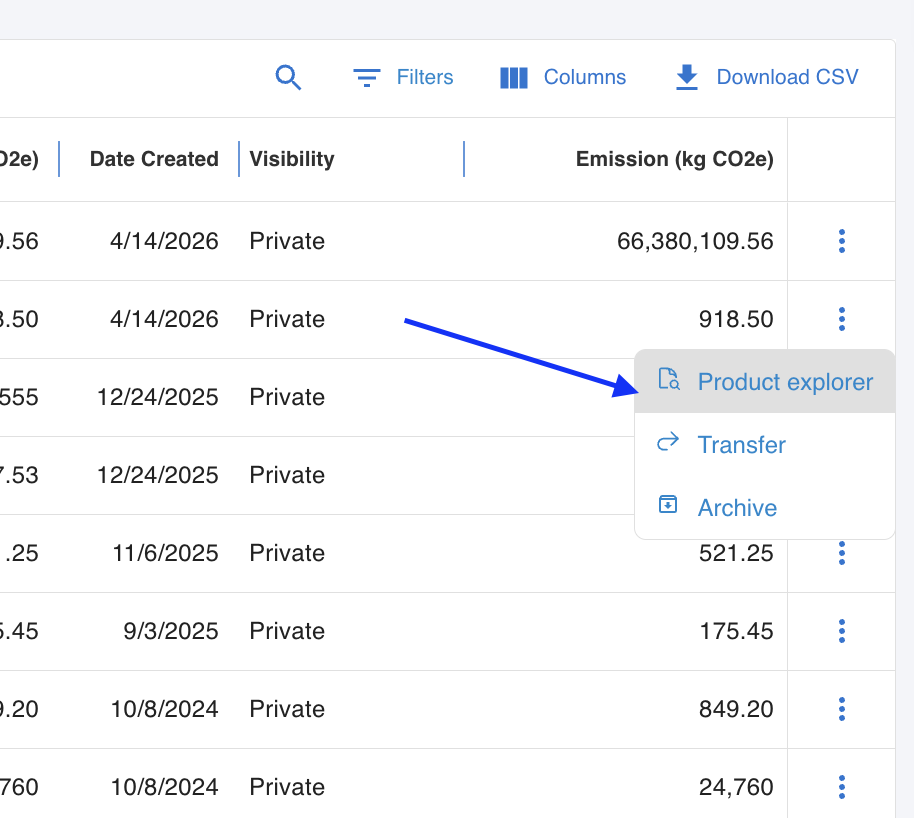
Product Explorer
View detailed carbon flow analysis for this CAP:
What you'll see:
- Emission breakdowns by scope (1, 2, 3)
- Process contributions and hotspots
- Material sources and suppliers
- Visual diagrams (Sankey, Bar Chart)
- Complete system genealogy
When to use:
- Analyzing emission sources for reduction opportunities
- Understanding supply chain contributions
- Preparing detailed reports for stakeholders
- Identifying process optimization targets
Steps:
- Click ⋮ next to the CAP
- Select Product Explorer
- Review visualizations and data
- Export or share findings
Transfer
Share this CAP with another CarbonSig account:
What happens:
- CAP is sent to recipient's account
- Becomes an Environmental Attribute Certificate (EAC) for them
- Original remains visible in your Transfers tab
- Recipient can use it as input in their systems
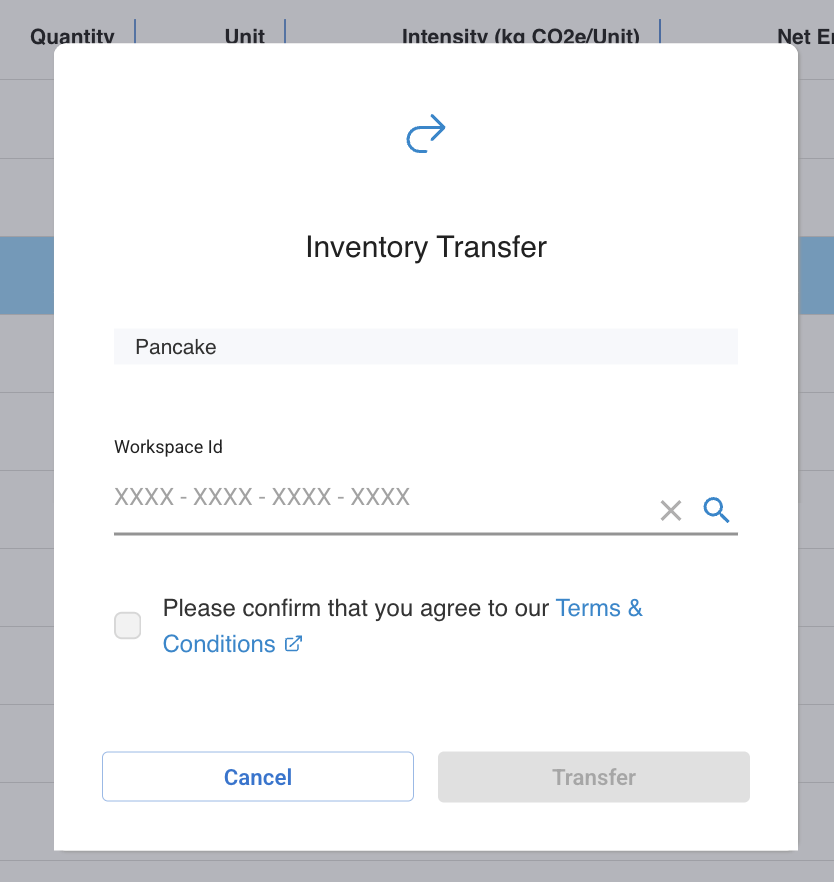
Steps:
- Click ⋮ next to the CAP
- Select Transfer
- Enter recipient's Workspace ID
- Add optional message or notes
- Click Confirm Transfer
What you see: CAP moves from Attestation tab to Transfers tab
When to transfer:
- Sharing product carbon data with customers
- Supplying verified emissions data to downstream partners
- Fulfilling customer sustainability reporting requests
- Enabling supply chain transparency
⚠️ Important notes:
- You must have Editor or Admin role to transfer CAPs
- Transfers cannot be undone
- Transferred CAPs count toward recipient's data library
- Original calculation data remains in your account
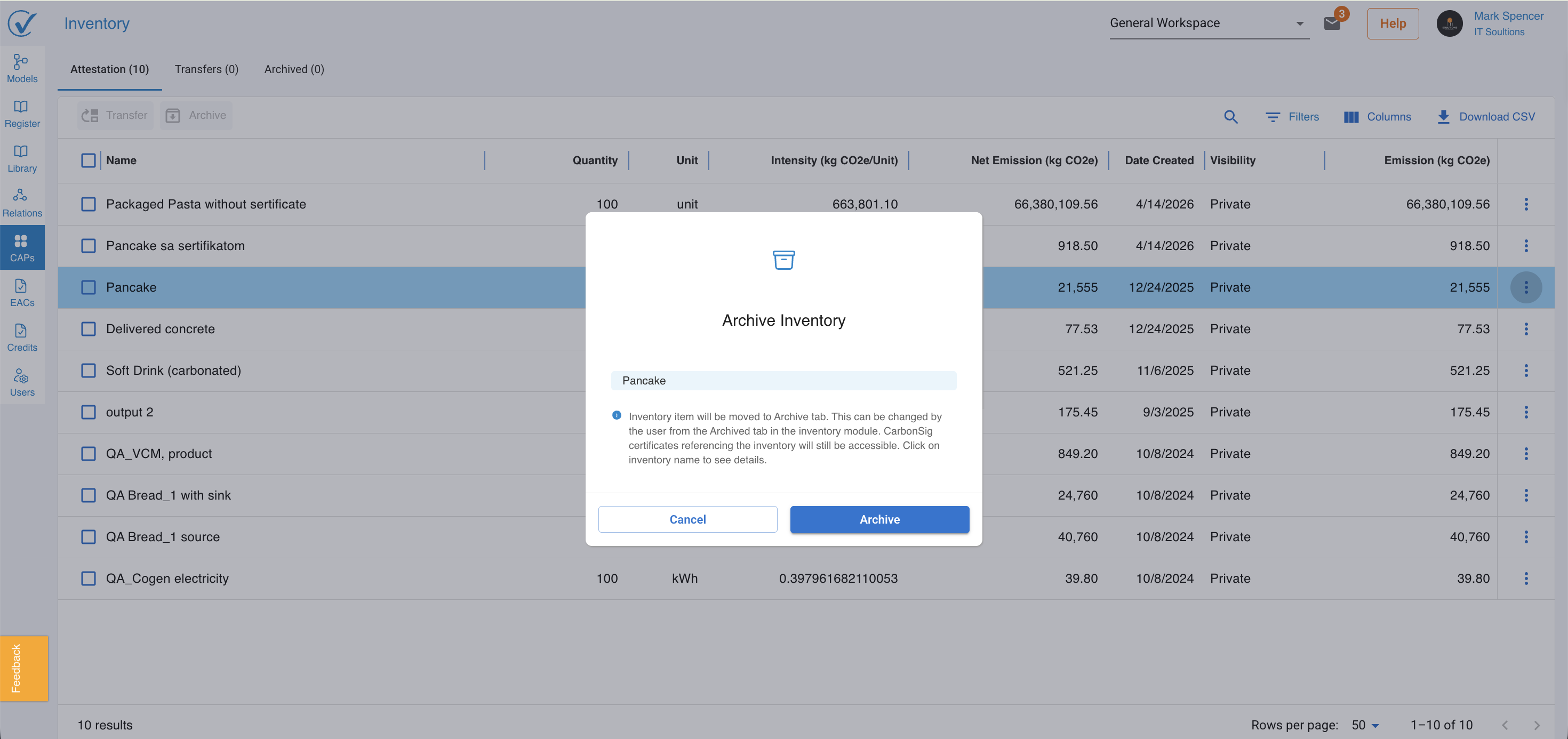
Archive
Remove CAP from active list while preserving all records:
What happens:
- CAP moves to Archived tab
- Removed from active Attestation list
- All data and calculations preserved
- Can be referenced for audits or historical analysis
- Cannot be transferred once archived
Steps:
- Click ⋮ next to the CAP
- Select Archive
- Confirm archiving action
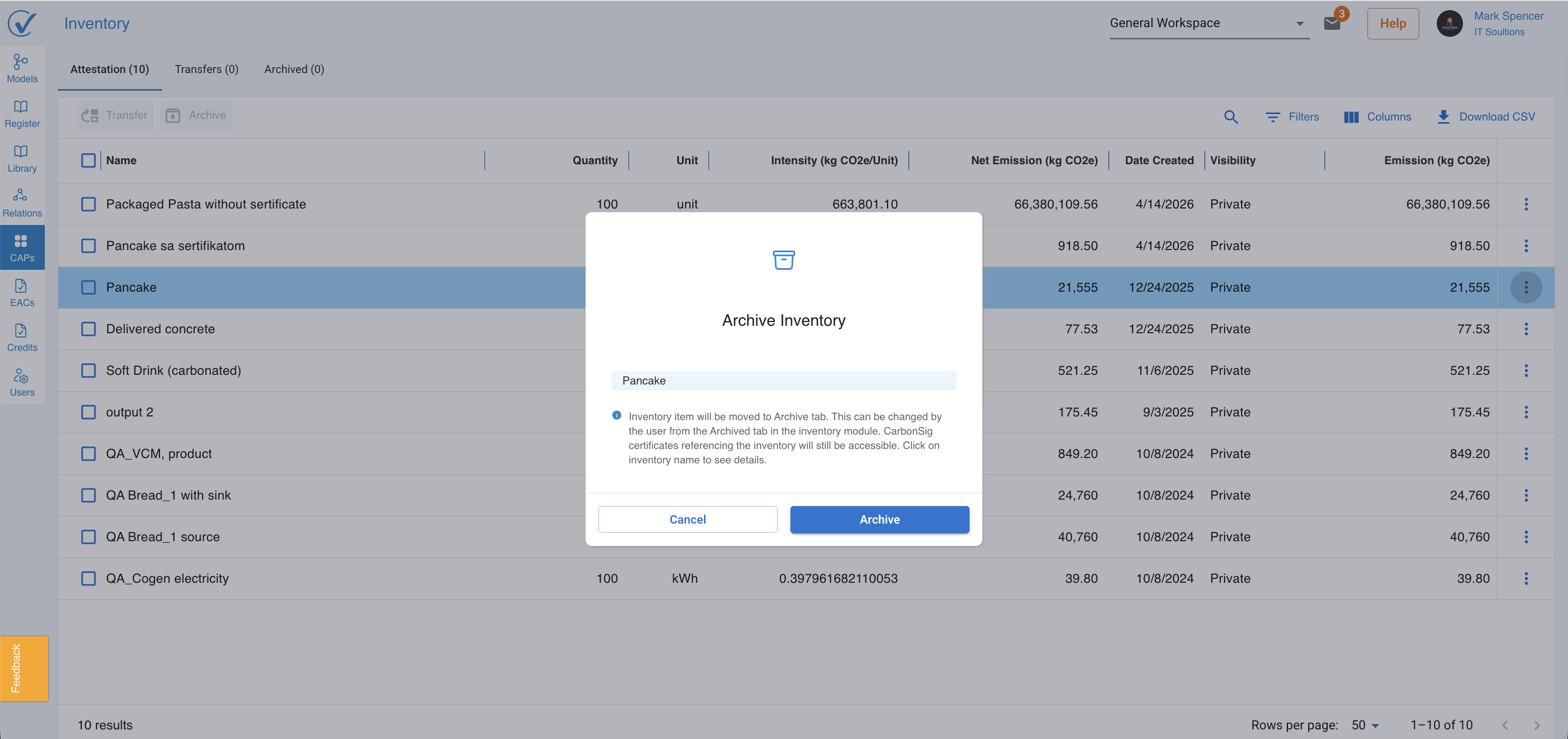
What you see: CAP moves from Attestation tab to Archived tab
When to archive:
- Project or production run completed
- CAP superseded by updated version
- Product discontinued
- Historical record-keeping for compliance
- Cleaning up active inventory
⚠️ Note: Archiving does not delete the CAP. All historical data remains accessible in the Archived tab.
Understanding the Transfers Tab
View CAPs you've transferred to other accounts:
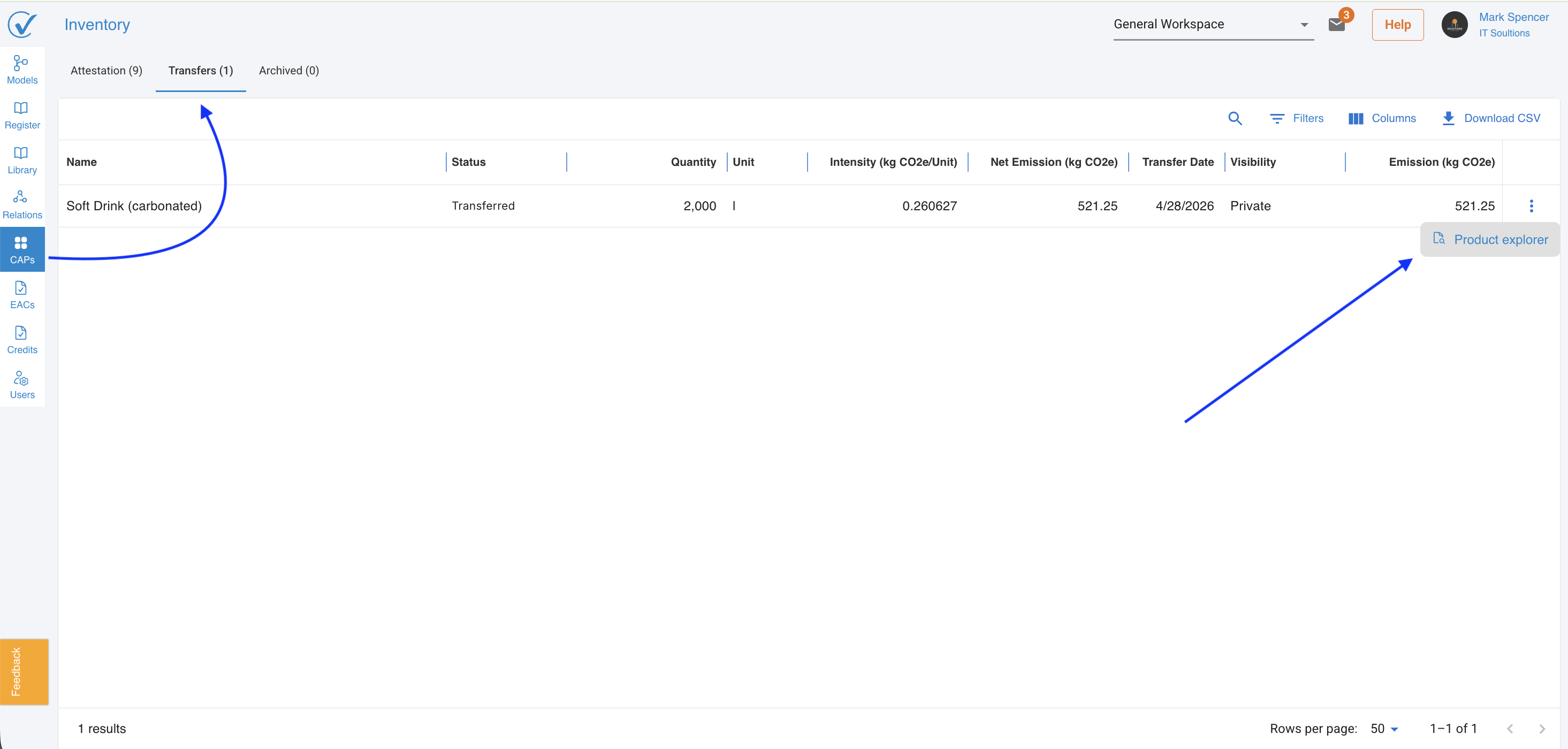
What's tracked:
- Which CAPs were transferred
- Transfer date and time
- Original CAP details (quantity, intensity, emissions)
Why this matters:
- Monitor supply chain data sharing
- Maintain audit trail of attestation transfers
- Support compliance documentation
💡 Tip: Transferred CAPs remain visible here indefinitely for audit purposes.
Understanding the Archived Tab
View historical CAPs no longer in active production:
What's included:
- Complete CAP details and calculations
- Original publication date
- Archiving date
- All associated system data
Common uses:
- Historical compliance reporting
- Year-over-year emissions comparisons
- Audit documentation
- Product lifecycle tracking
⚠️ Limitation: Archived CAPs cannot be transferred. Unarchive first if you need to share with another account.
Filters
Refine your CAP list by multiple criteria:
Available filters:
- Date range: Created between specific dates
- Visibility: Public, Private, or Restricted only
- Publisher: Filter by account (useful for External Users with access to multiple accounts)
- Emission intensity: High to low or specific ranges
How to use:
- Click Filters button
- Select filter criteria
- Apply filters
- Clear filters to reset view
Columns
Customize which columns display:
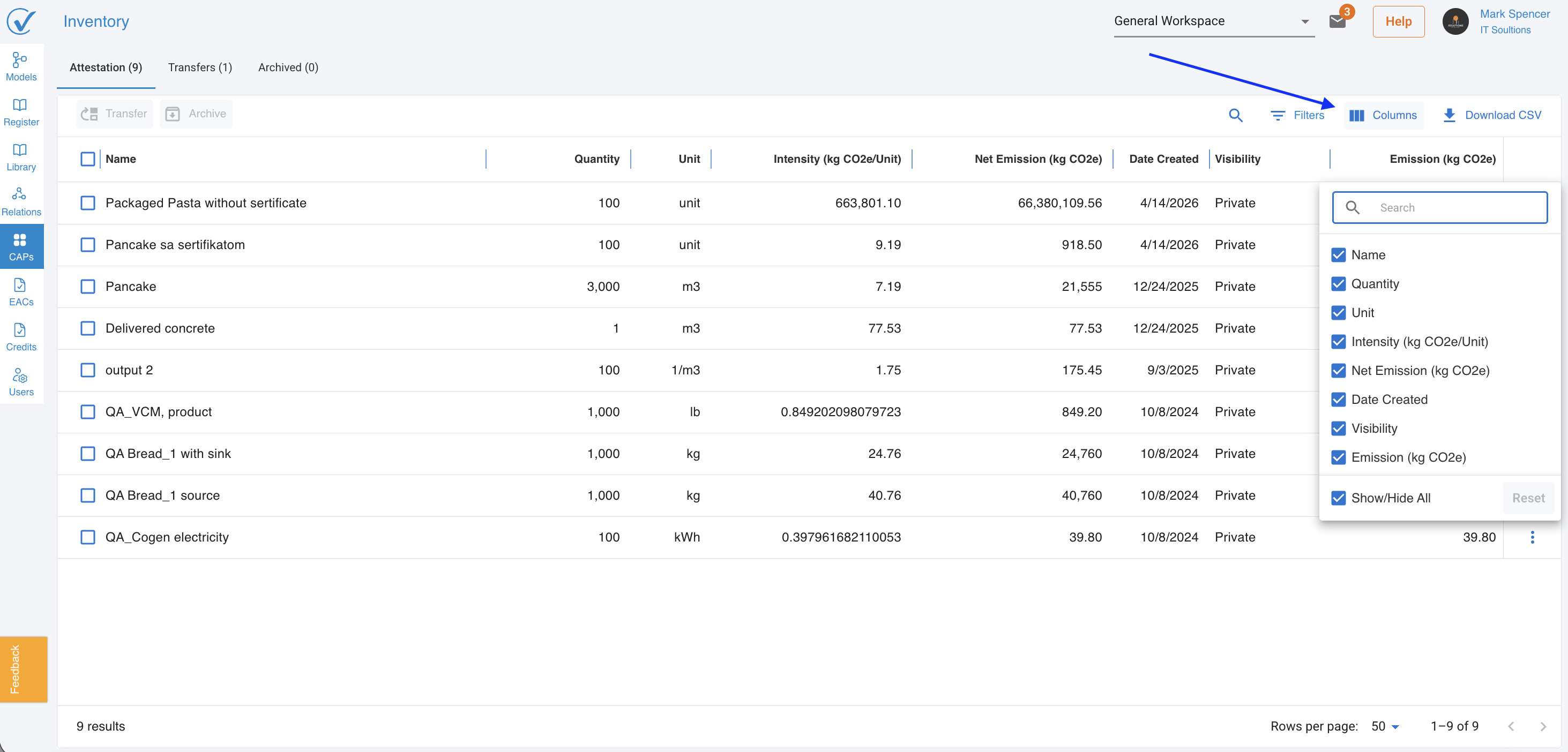
Available options:
- Show/hide specific columns
- Rearrange column order
- Adjust column width
How to customize:
- Click Columns button
- Check/uncheck columns to show/hide
- Drag columns to reorder
Download
Export your CAP inventory for external analysis:
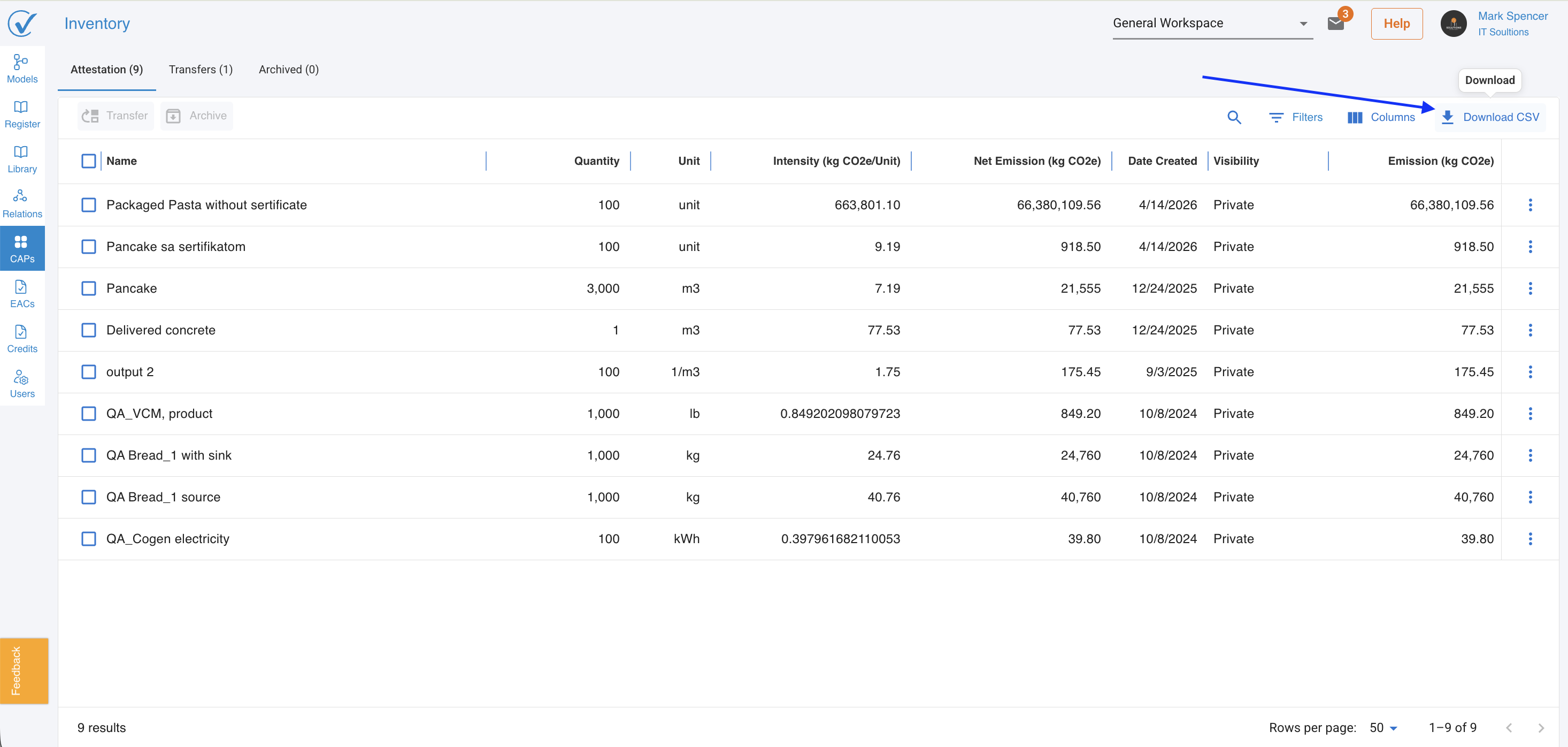
Export formats:
- CSV: For Excel or data analysis tools
- Excel: Formatted spreadsheet with all columns
What's included:
- All visible columns
- Applied filters (exports filtered results only)
- CAP details and metadata
Steps:
- Apply any desired filters
- Click Download button
- Select format (CSV or Excel)
- File downloads to your computer
Understanding Visibility Settings
Each CAP has a visibility setting that controls who can access it:
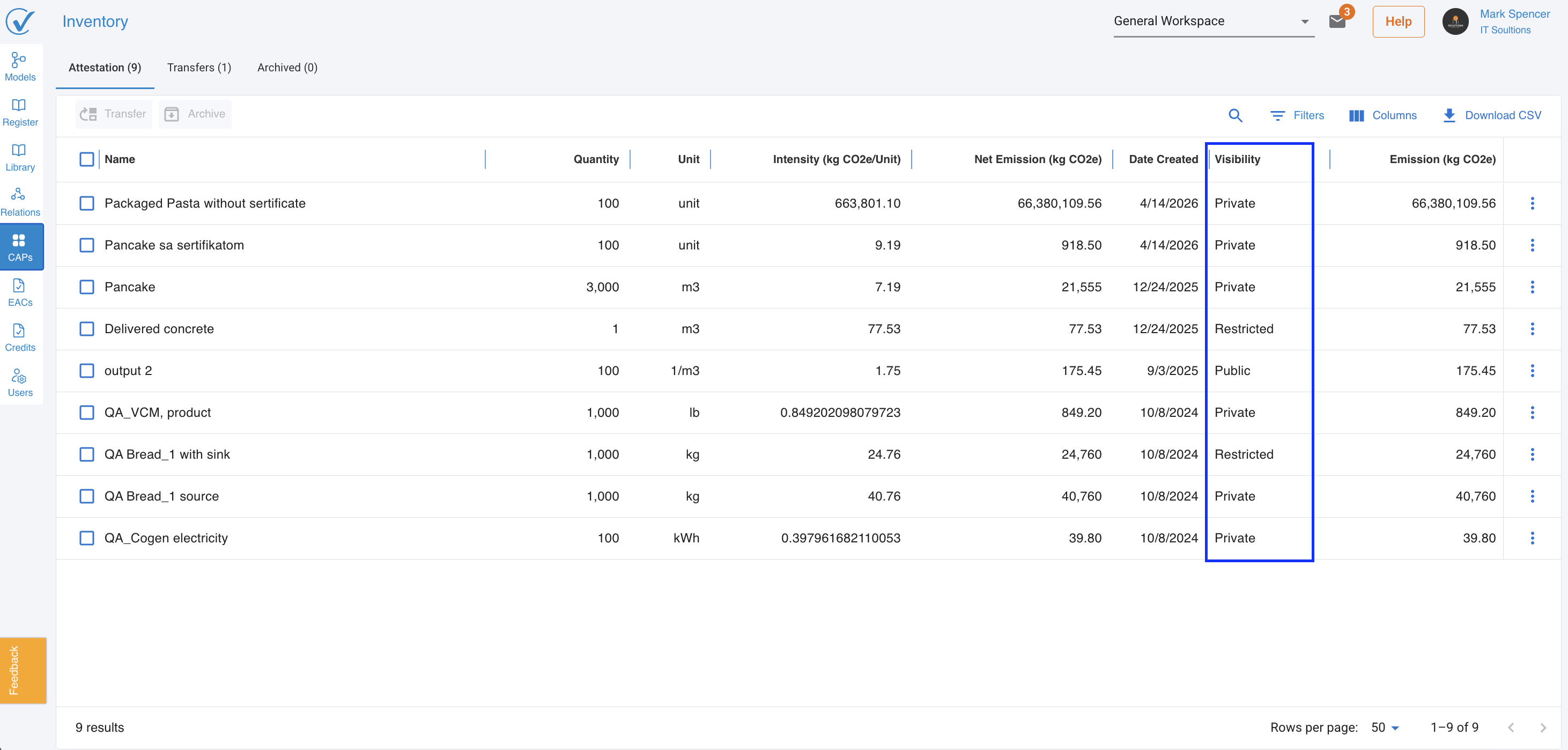
1. Public
Who can see it:
- All CarbonSig users across all accounts
- Visible in global Product Explorer
- Discoverable by search
When to use:
- Products marketed with transparent carbon data
- Industry-standard materials
- Building public reputation for sustainability
- Encouraging supply chain transparency
Best for: Companies committed to full transparency
2. Private
Who can see it:
- Only users within your account
- Your workspaces and assigned users
- Not visible to external parties
When to use:
- Proprietary products or processes
- Competitive information protection
- Internal reporting only
- Pre-release product data
Best for: Confidential business information
3. Restricted
Who can see it:
- Your account users (always)
- Specific external accounts you designate
- Requires explicit sharing permission
When to use:
- Sharing with specific customers
- Controlled supplier collaboration
- Joint venture partnerships
- Selected stakeholder reporting
Best for: Controlled, relationship-based sharing
💡 Pro tip: Start with Private visibility and upgrade to Restricted or Public as needed.
Learn more about sharing CAPs →
Workspace Context
Important: The Inventory page shows CAPs from your current workspace only.
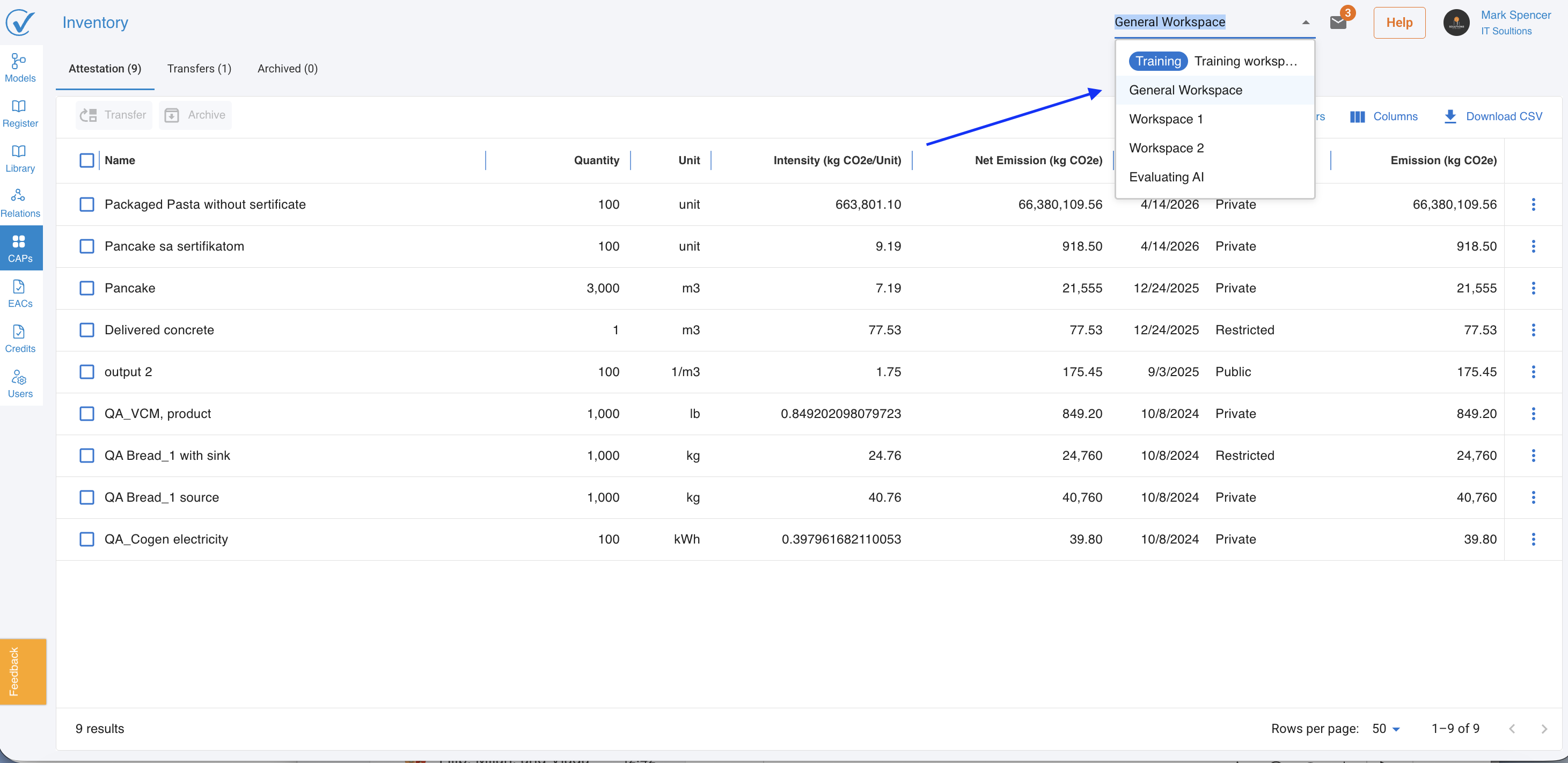
To see CAPs from other workspaces:
- Use the Workspace Selector in the header
- Switch to the desired workspace
- View that workspace's Inventory
Why this matters:
- Each workspace maintains separate CAP inventories
- Enables organizational separation (by location, project, team)
- Supports multi-facility tracking
- Maintains data isolation between business units
Best Practices
✓ Organization
- Use descriptive names: "Steel Beam A36 Grade - Q1 2025" vs. "Product 1"
- Regular reviews: Check Inventory monthly for accuracy and completeness
- Archive promptly: Move completed projects to Archived tab
- Consistent naming: Develop naming conventions for your organization
✓ Data Quality
- Verify before publishing: Ensure system data is complete and accurate
- Document methodology: Use system notes to explain calculation approaches
- Regular updates: Regenerate CAPs when source data improves
- Version control: Include date or version in CAP name
✓ Collaboration
- Set appropriate visibility: Match sharing needs to business relationships
- Track transfers: Document which customers received which CAPs
- Respond to requests: Monitor supplier inquiries for your Public CAPs
- Maintain audit trail: Keep records of all transfers and archives
✓ Security
- Protect proprietary data: Use Private visibility for confidential products
- Verify recipient IDs: Confirm Workspace ID before transferring
- Review permissions: Ensure users have appropriate access levels
- Regular audits: Review who can access your CAPs
Common Workflows
Scenario 1: Customer Requests Carbon Data
- Create system for the product
- Generate CAP from completed system
- Verify accuracy in Product Explorer
- Transfer CAP to customer's Workspace ID
- Track transfer in Transfers tab
Scenario 2: Internal Reporting
- Filter CAPs by date range (e.g., Q1 2025)
- Sort by intensity to identify high-emission products
- Download filtered list as Excel
- Analyze in external tools
- Generate reports for management
Scenario 3: Product Lifecycle Management
- Create initial CAP for new product launch
- Monitor in Attestation tab during production
- Update system as process improvements occur
- Generate new CAP with updated data
- Archive old CAP when superseded
- Track improvements by comparing archived vs. current
Troubleshooting
Can't find a CAP
Possible causes:
- Viewing wrong workspace
- CAP is in Transfers or Archived tab
- Filters hiding the CAP
- Created by different user/account
Solutions:
- Switch workspaces using Workspace Selector
- Check all three tabs (Attestation, Transfers, Archived)
- Clear all filters
- Use search function with partial name
- Contact Admin to verify CAP exists
CAP shows incorrect data
Possible causes:
- Source system contains errors
- Old system version used
- Calculation methodology changed
Solutions:
- Review source system in Design and Entry modes
- Regenerate CAP from updated system
- Archive incorrect version
- Add notes documenting corrections
- Notify recipients if CAP was transferred
Transfer option disabled
Possible causes:
- Insufficient permissions (Viewer role)
- CAP already transferred
- CAP is archived
- System error
Solutions:
- Verify you have Editor or Admin role
- Check if CAP is in Transfers tab already
- Unarchive if needed
- Refresh browser page
- Contact support if issue persists
Cannot archive CAP
Possible causes:
- CAP is referenced by active systems
- Insufficient permissions
- System constraint
Solutions:
- Remove CAP references from active systems first
- Verify Admin or Editor role
- Contact support for assistance
Download not working
Possible causes:
- Browser blocking downloads
- Network connectivity issue
- No CAPs match filter criteria
Solutions:
- Check browser download settings
- Allow pop-ups from CarbonSig domain
- Clear filters and try again
- Try different browser
- Contact support if problem continues
Related Articles
System Creation:
- Quick Start: Build Your First System
- Design Your System (Design Mode)
- Add Data to Your System (Entry Mode)
CAP Management:
- Sharing CAPs
- Generate and Publish CAPs (article to be created)
- Understanding Product Explorer (article to be created)
Workspace & Access:
Supplier Collaboration:
- Supplier Management in CarbonSig
- Using EACs as Input Sources (article to be created)
Need Help?
Questions about CAP management:
- Visit our Help Center
- Email support@carbonsig.com
- Use in-app feedback tool
Manage your carbon attestations efficiently with the Inventory page!
Last updated: November 2025