
Insight Hub: Workspace Analytics Export
Export comprehensive system and product analytics for strategic decision-making.
Time to complete: 1-2 minutes to generate export
Export Your Workspace Analytics
Generate structured Excel reports containing aggregated metrics from all Ready systems in your workspace.
Steps:
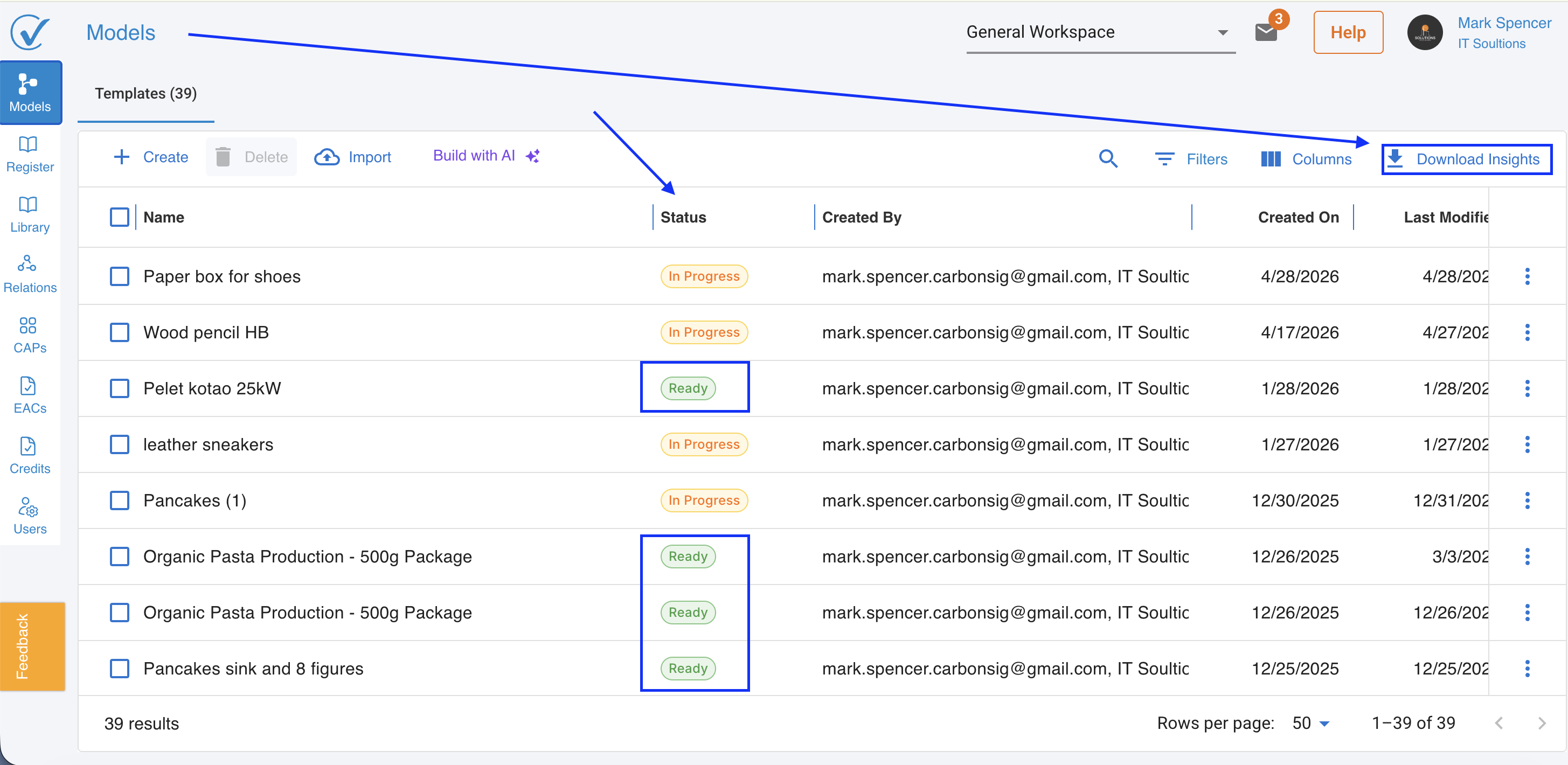
- Go to Models page
- Click "Download Insights" button
- Wait for file generation (30-60 seconds)
- Excel file downloads automatically
What you get: Excel (.xlsx) file with workspace analytics
What's in Your Export
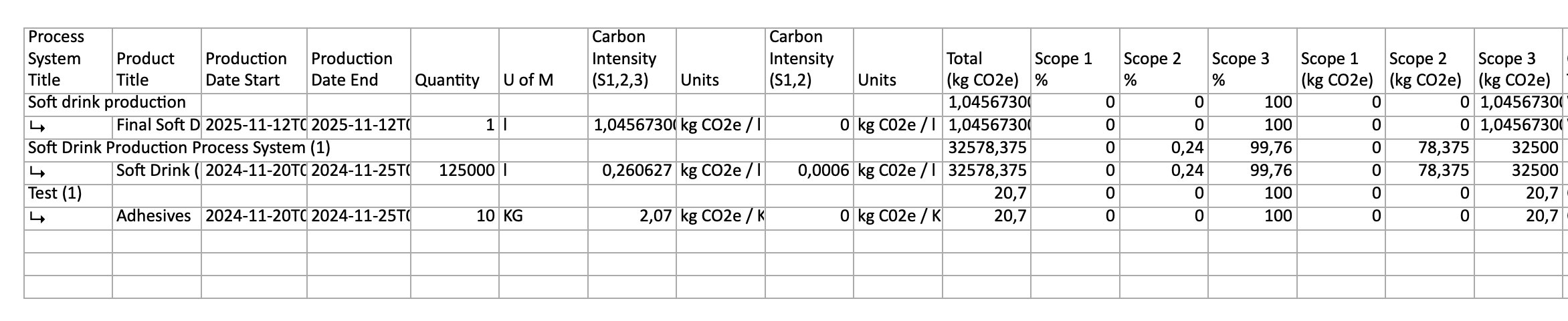
Your Insight Hub export contains three data levels:
Systems-Level Data
Aggregated metrics for all systems with "Ready" status:
- System names and identifiers
- Total carbon footprints
- Emission breakdowns by scope
- Creation and update timestamps
Products-Level Data
Detailed breakdown for products within each system:
- Product names and functional units
- Carbon intensity values
- Allocation percentages
- Product-specific emissions
- Output quantities
Contributors Data
Granular contributor-level information for deep analysis.

Understanding the Data Structure
Hierarchical organization:
- Level 1: Systems (workspace-level aggregation)
- Level 2: Products (system-level breakdown)

- Level 3: Contributors
File characteristics:
- Consistent column headers across all exports
- Flattened nested arrays for easy processing
- No merged cells (optimized for AI analysis tools)
- Clean, structured tables suitable for automated analysis
Technical Details
What Systems Are Included
Included:
- All systems with "Ready" status in your current workspace
- Systems with complete data and calculations
- Both manually created and AI-generated systems
Excluded:
- Systems with "In Progress" status
- Archived systems
- Systems in other workspaces (unless specifically accessed)
- Training workspace systems
Data Quality Assurance
The export ensures:
- Accurate reflection of system calculations at time of export
- Consistent formatting for automated analysis
- Complete metadata for traceability
- No loss of precision in numerical values
File Format Specifications
Excel (.xlsx) format features:
- Multiple worksheets for different data levels
- Header row with descriptive column names
- Numerical precision preserved
When to Use Insight Hub
Strategic Planning
- Generate reports for board presentations
- Analyze trends across multiple systems
- Identify carbon reduction opportunities
- Track progress against sustainability targets
Compliance Reporting
- Create comprehensive emissions summaries
- Generate audit-ready documentation
- Support regulatory submissions
- Provide stakeholder transparency
Data Integration
- Import into business intelligence tools (Power BI, Tableau)
- Combine with financial data for cost analysis
- Feed into corporate sustainability reporting systems
- Share with external consultants or auditors
Comparative Analysis
- Compare emission profiles across product lines
- Benchmark systems against industry standards
- Track year-over-year improvements
- Identify high-impact reduction areas
Best Practices
Before Export:
Ensure data quality:
- Verify all relevant systems show "Ready" status
- Confirm systems contain current, accurate data
- Update any outdated emission factors
- Review system boundaries for completeness
Optimize export scope:
- Include only systems needed for your analysis
- Archive outdated systems to reduce file size
- Consider filtering if analyzing specific product categories
After Export:
Quality assurance:
- Review export metadata to confirm parameters
- Validate key metrics against expected ranges
- Check for any unexpected blank cells or anomalies
- Verify emission totals match system-level calculations
Version control:
- Save exports with clear naming conventions (e.g., "Workspace_Analytics_2025-12-04.xlsx")
- Document export date and scope in file name or metadata
- Store historical exports for trend analysis
- Maintain change log for significant updates
Use Case Examples
Example 1: Board Presentation
Scenario: Prepare quarterly sustainability report for executive leadership
Workflow:
- Export Insight Hub data for all product lines
- Import into Power BI
- Create visualizations showing emission trends
- Highlight top contributors and reduction opportunities
Example 2: Compliance Audit
Scenario: Support third-party carbon verification
Workflow:
- Generate Insight Hub export before audit
- Provide structured data to verifiers
- Reference system-level calculations
- Demonstrate traceability to source data
Example 3: Product Portfolio Analysis
Scenario: Identify which products have highest carbon intensity
Workflow:
- Export products-level data
- Sort by carbon intensity
- Analyze contributing factors
- Prioritize redesign efforts for high-impact products
Example 4: Supply Chain Collaboration
Scenario: Share aggregated emissions with major customer
Workflow:
- Export relevant systems data
- Anonymize proprietary information as needed
- Convert to customer-preferred format
- Support customer's Scope 3 reporting
Troubleshooting
Export button not visible
Possible causes:
- Insufficient permissions (must be Admin or Editor)
- Browser cache issue
- Workspace contains no Ready systems
Solutions:
- Contact Admin to verify your role
- Refresh page and clear browser cache
- Check System Template Status column for Ready systems
Export takes longer than expected
Reasons:
- Large workspace with many systems
- Complex systems with numerous products
- High server load
What to do:
- Wait up to 2 minutes for generation
- Avoid clicking Download Insights repeatedly
- If timeout occurs, try again during off-peak hours
- Contact our support
Missing systems in export
Check:
- System status (must be "Ready", not "In Progress")
- Current workspace selection
- Systems haven't been archived
- Filter settings if viewing limited system list
Data looks incorrect in Excel
Verify:
- Excel isn't reformatting numbers as dates
- Decimal separators match your locale settings
- No filters accidentally applied to columns
- File opened in compatible Excel version (2016+)
Frequently Asked Questions
Q: How often should I generate exports?
A: Generate exports whenever you need current analytics. For regular reporting, weekly or monthly exports maintain historical trend data.
Q: Does exporting affect system data?
A: No. Exports are read-only snapshots. Your systems and data remain unchanged.
Q: Can I export data from multiple workspaces?
A: Each export is workspace-specific. Generate separate exports for each workspace, then combine externally if needed.
Q: What happens to proprietary data in exports?
A: Insight Hub exports respect your data permissions. Only data you have access to appears in exports.
Q: Can external users generate exports?
A: Yes, if they have Admin or Editor roles in your workspace. Viewer role cannot generate exports.
Q: How long are exports stored?
A: Exports download immediately and aren't stored on CarbonSig servers. Manage your downloaded files locally.
Q: Can I customize which columns export?
A: Not currently. All standard metrics export automatically. Use Excel filtering after export to focus on specific data.
Related Articles
System Management:
Data Quality:
Analytics & Reporting:
- Latest Update October '25 - Advanced Analytics & Supplier Intelligence Features
- Understanding Workspaces
Keywords
Primary: Insight Hub, workspace analytics, system export, carbon data export, analytics export, Download Insights, workspace metrics, aggregated emissions data
Secondary: Excel export, system analytics, product analytics, carbon reporting, sustainability metrics, emissions aggregation, workspace insights, data export, analytics download
Technical: structured data export, system-level aggregation, product-level breakdown, AI-friendly formatting, hierarchical data structure, XLSX export, workspace analytics API, carbon footprint aggregation
Need Help?
Questions about Insight Hub:
- Visit our Help Center
- Email support@carbonsig.com
- Use in-app Feedback tool
Transform your carbon data into strategic insights!
Last updated: April 2026