
Latest update March '26 - System locking and Viewer role in System Builder
System locking
Admins and Editors can lock one or more systems directly from the System page. A locked system enters view-only mode — editing is disabled, but Copy and Export remain available.
What locking does:
- All editing interactions are disabled (renaming nodes, editing fields, modifying connections).
- Copy and Export remain fully accessible.
- Adding, replying to, and deleting comments remain accessible.
- Adding and deleting verifications is not accessible.
- The Publish option on the Analyze page is removed.
Locking subsystems:
If a system contains subsystems (systems linked in inputs as a source), all linked subsystems are also locked when the parent is locked. An informational modal appears when this happens. While subsystems are locked, the Update, Remove, and Archive options for emission factors used in those systems are not available.
How to lock a system:
- Go to the System page.
- Select system.
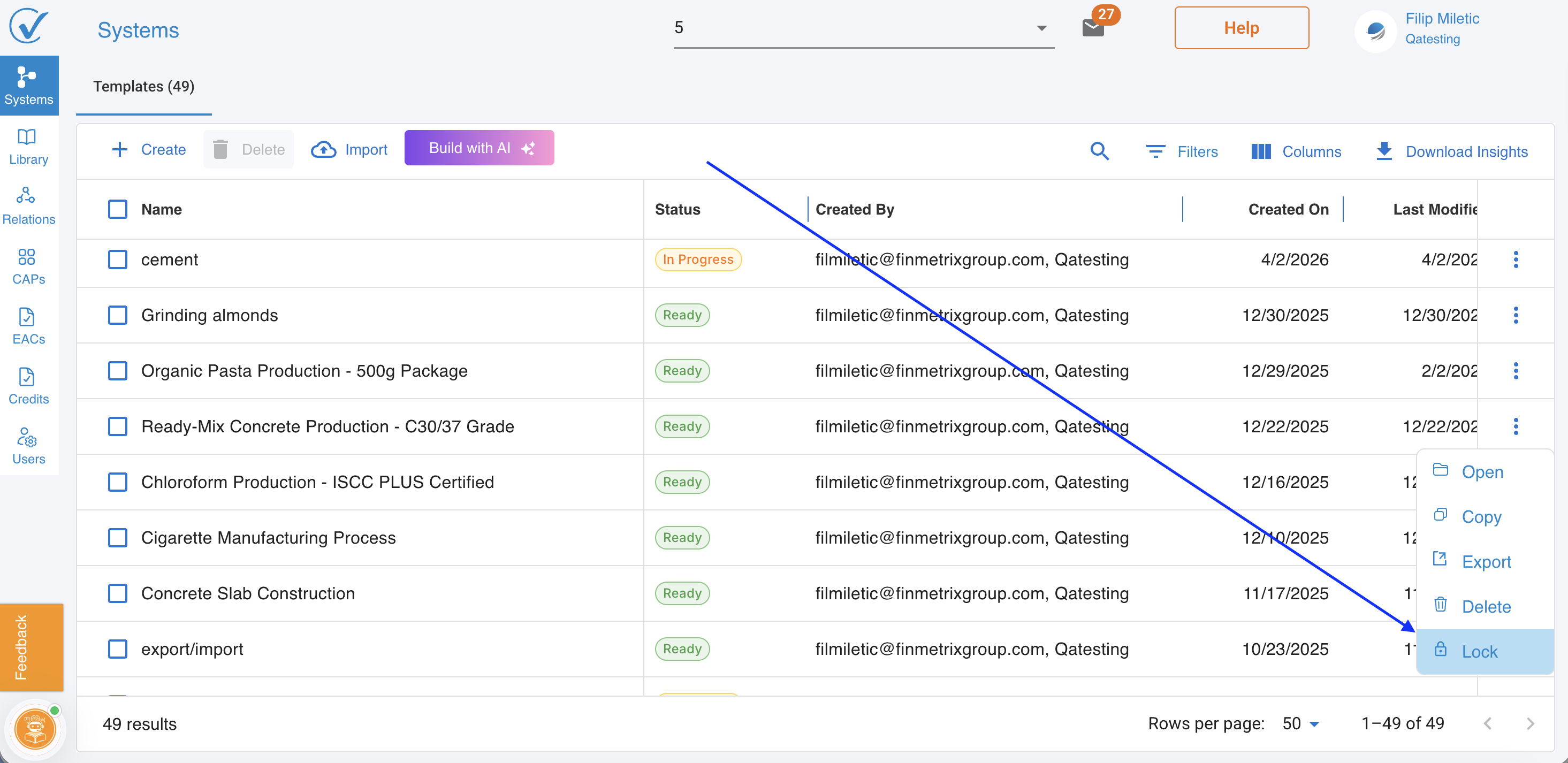
- Click Lock from the action menu or the three-dot menu on an individual system.
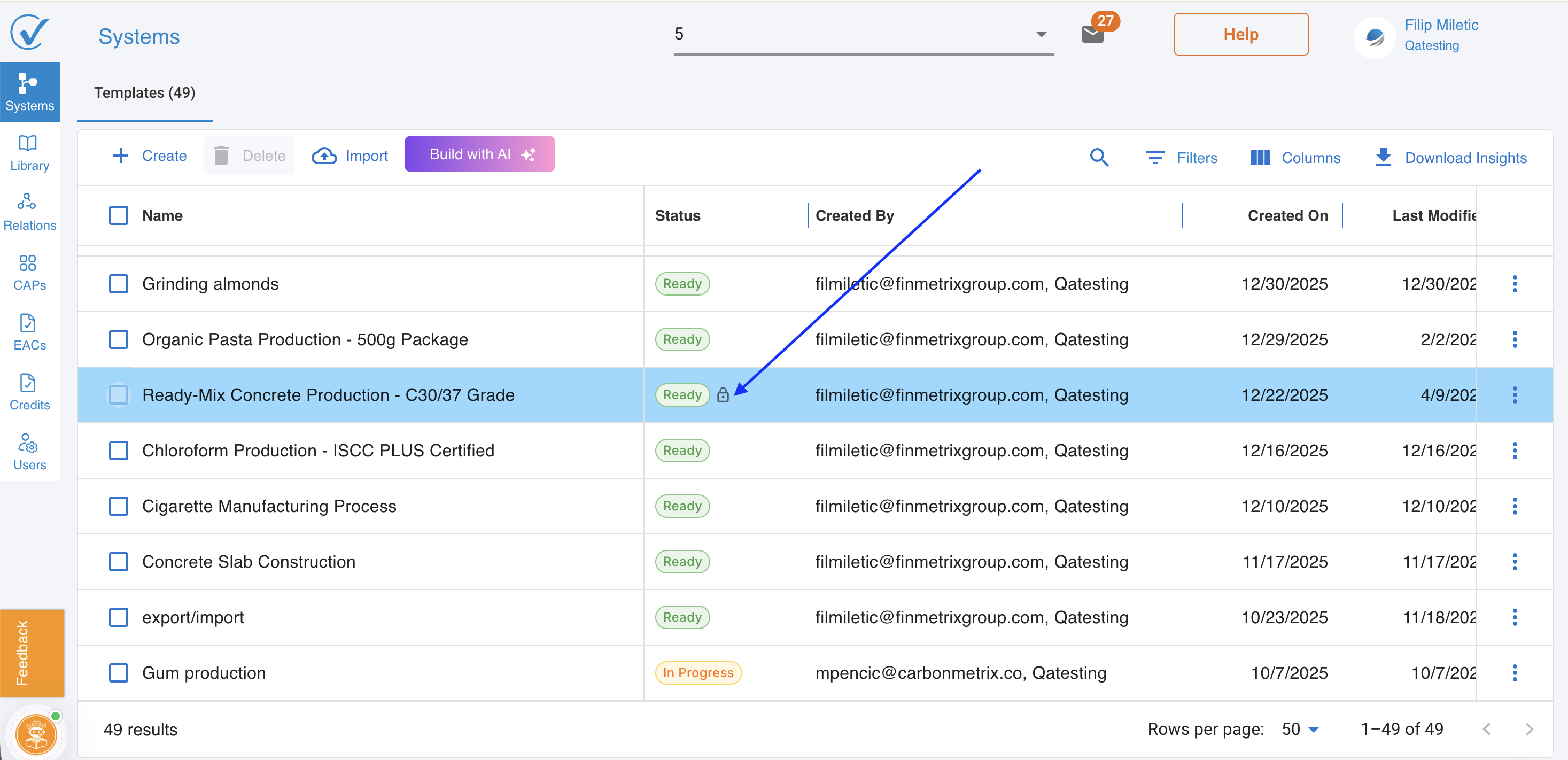
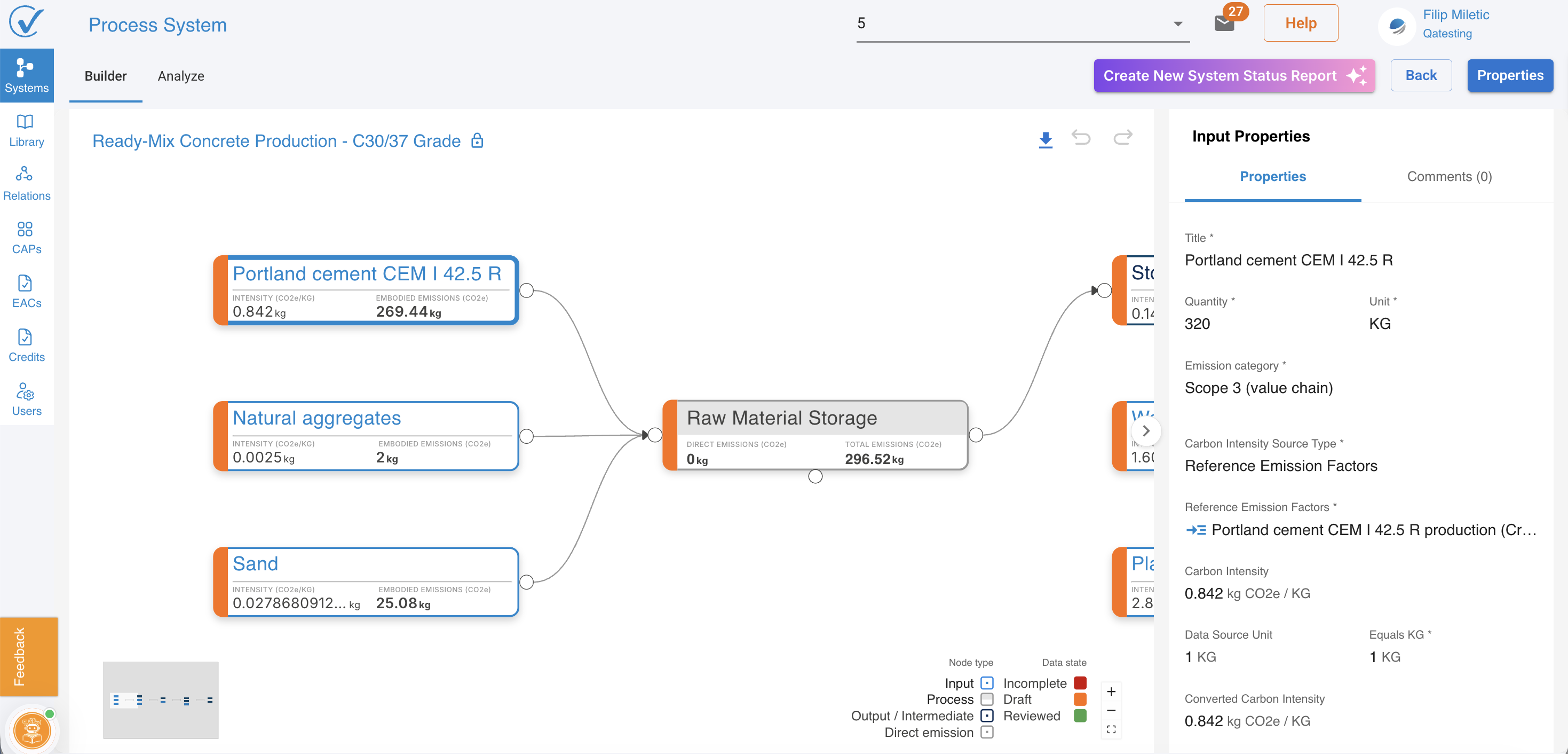
A lock indicator appears in the system list and in the system header when a system is in view-only mode.
How to unlock a system:
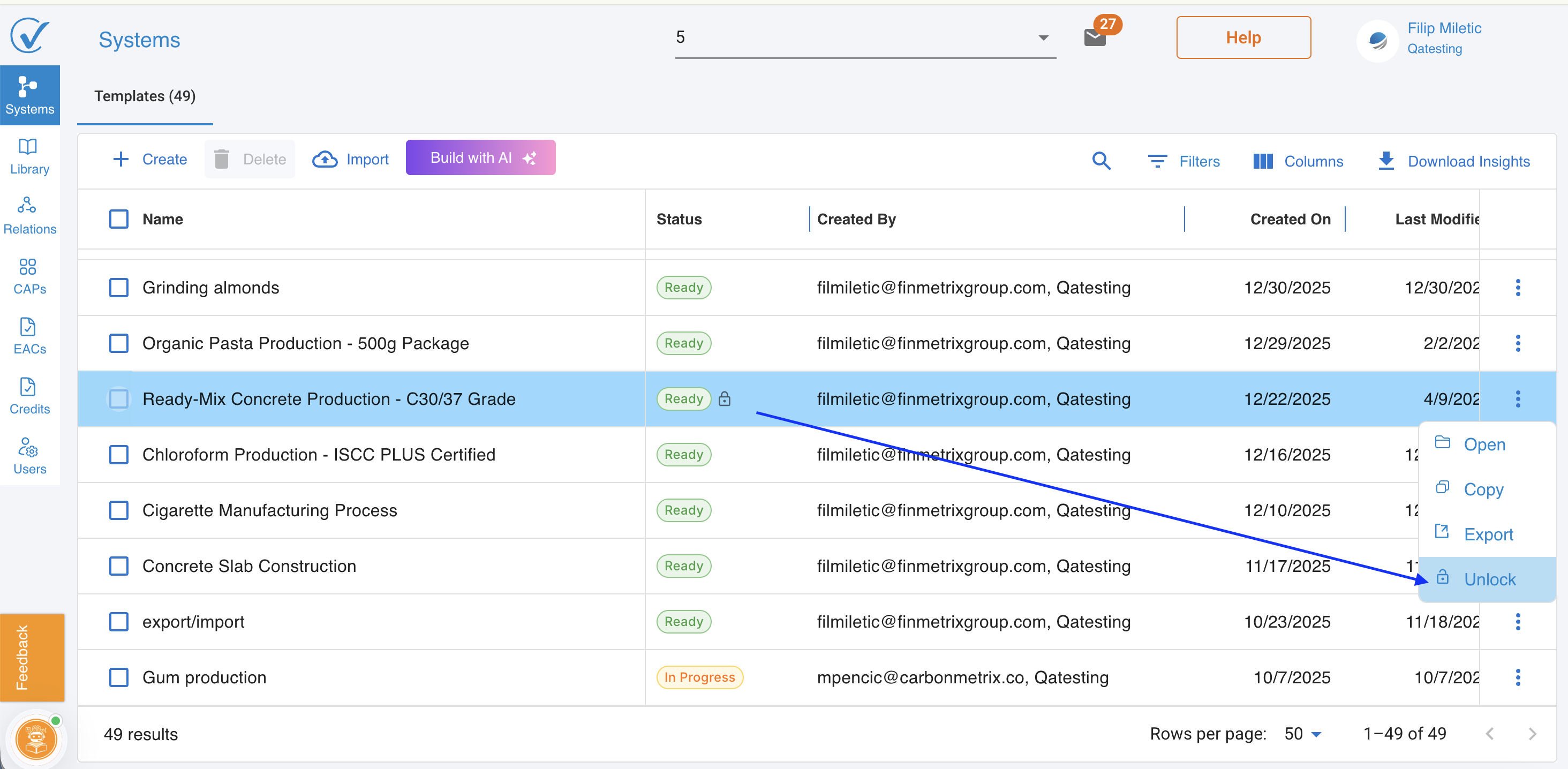
Any Admin or Editor can unlock a system at any time. Select the locked system and choose Unlock from the action menu or the three-dot menu.
Who can lock and unlock:
Action | Admin | Editor | Viewer |
|---|---|---|---|
Lock systems | Yes | Yes | No |
Unlock systems | Yes | Yes | No |
View locked systems | Yes | Yes | Yes |
Viewer role in System Builder
The Viewer role now has a dedicated view-only experience when opening systems. Viewers can open and review any system in their assigned workspaces, but editing controls are not available.
What Viewers can do in the System Builder:
- Open systems and review all nodes, connections, and data.
- Add, reply to, and delete comments.
- View LCI data from the node modal.
What Viewers cannot do:
- Create, delete, import, copy, or export systems.
- Use Build with AI.
- Edit node data, rename nodes, or modify system connections.
- Add or delete verifications.
- Publish from the Analyze page.
Viewers do not see action buttons for Create, Delete, Import, Build with AI, Copy, Export, or the bulk selection checkboxes on the System page.
Additional updates
View LCI from node modal
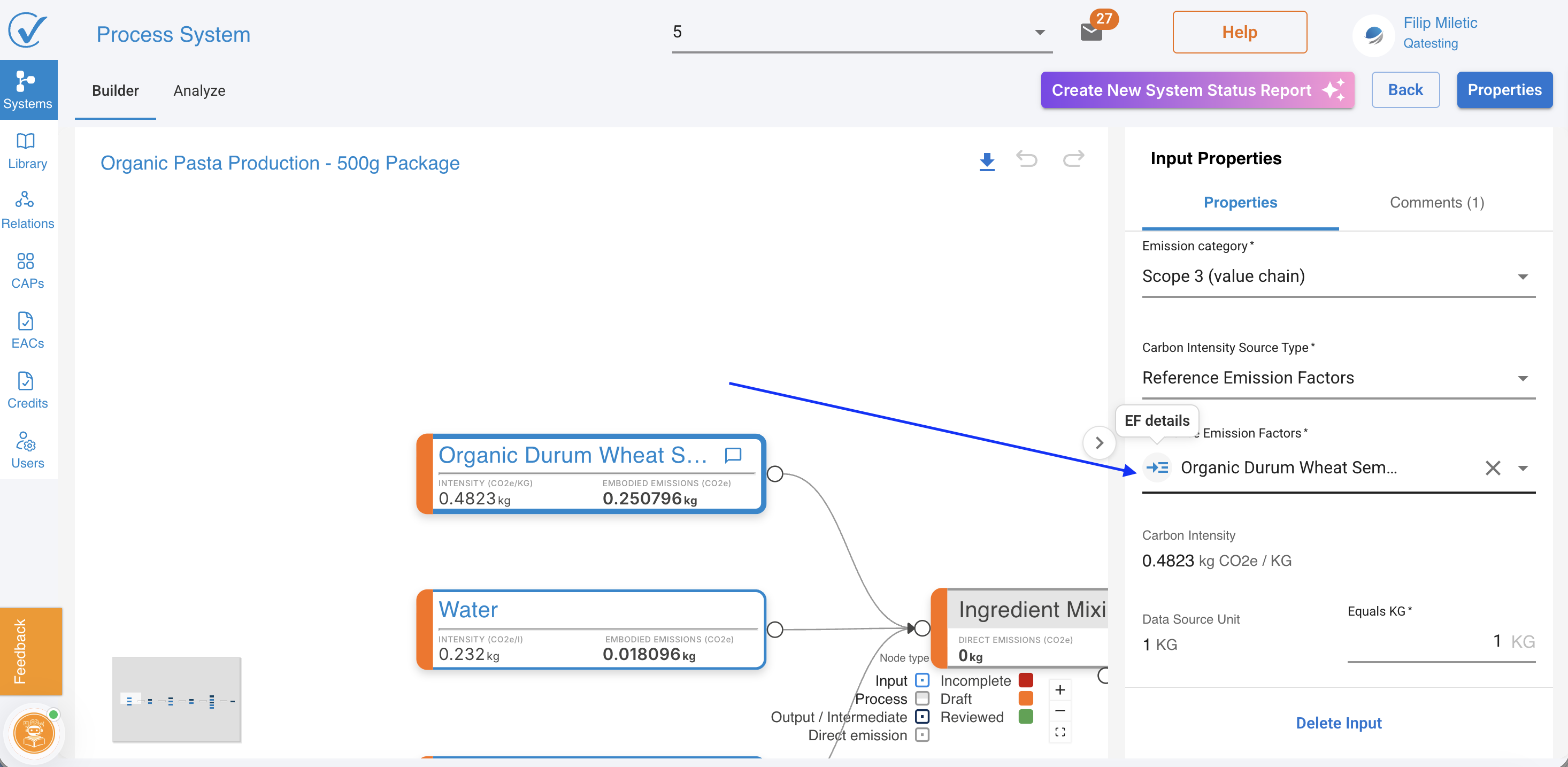
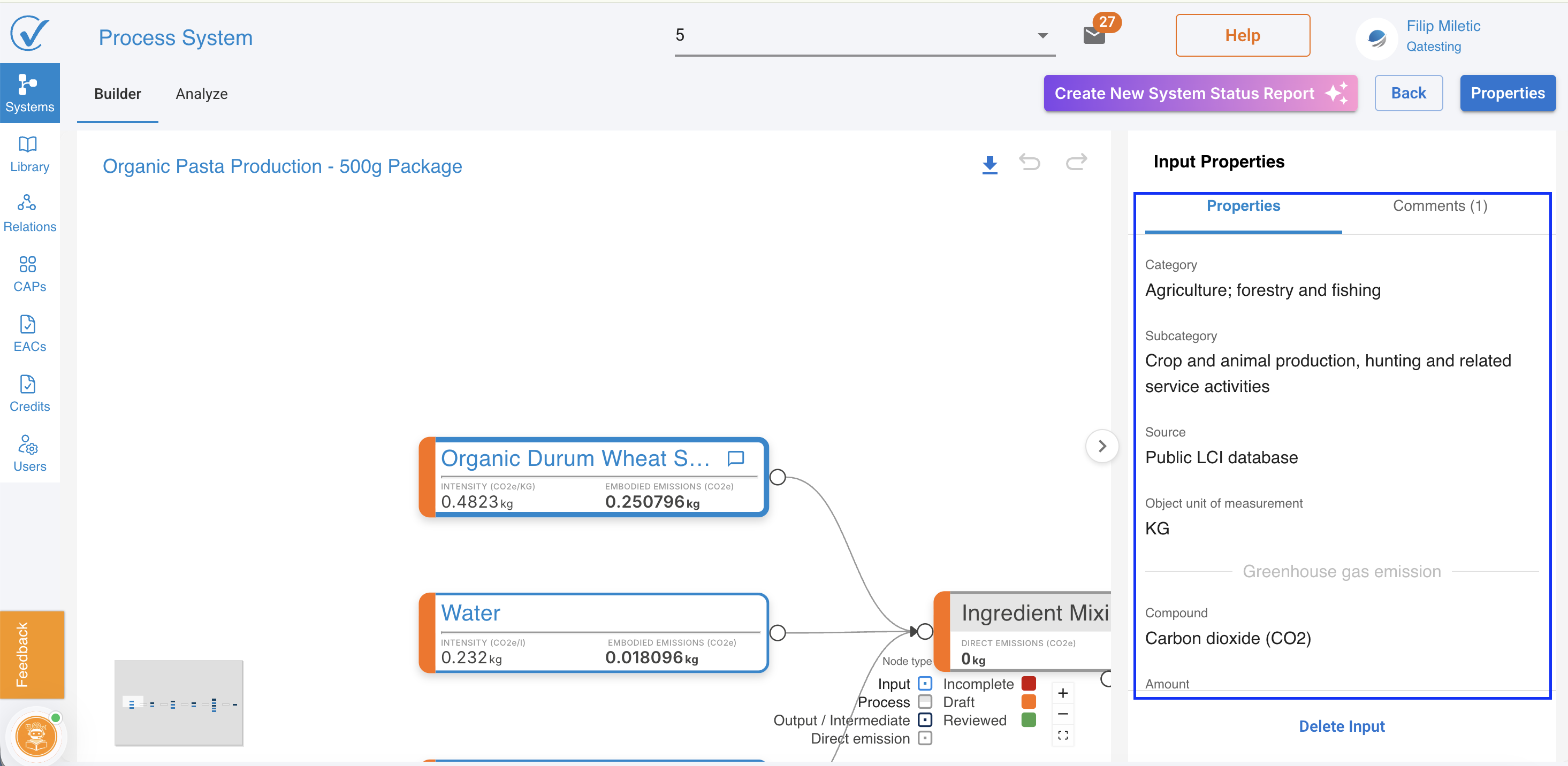
Users can now view LCI data directly from the node modal within a system, without navigating away to the library.
Download visualizations from systems
Charts and diagrams within systems can now be downloaded as image files directly from the System Builder.
Download bar chart as Excel file
The bar chart on the Analyze page can now be exported as an Excel file (.xlsx) for use in external reporting.
Last updated: March 2026